ARMS Support Site Walkthrough

This walkthrough will cover the features and operation of the ARMS Support Site. This site is a powerful tool that contains all ARMS feature documentation, FAQs, and technical information.
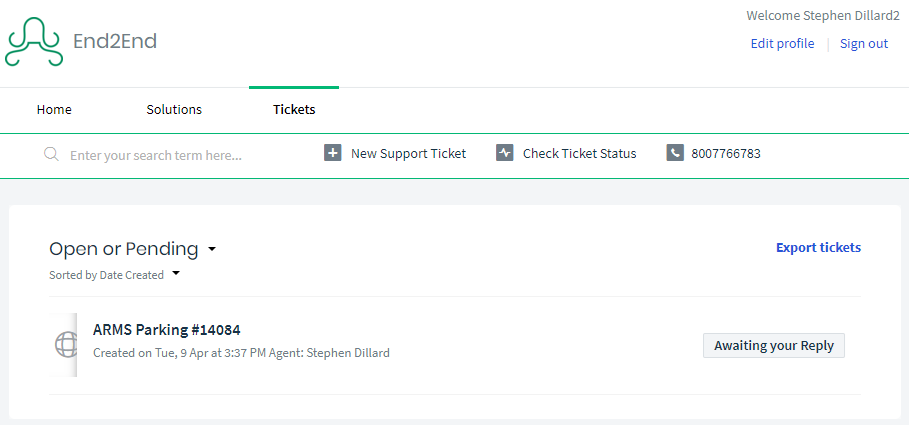
The Admin can submit new tickets and check on the status of their tickets.
Accessing the ARMS Support Site
There are two ways to access the ARMS Support Site. The first is to open the web browser of the user’s choice and navigate to https://help.arms.com.
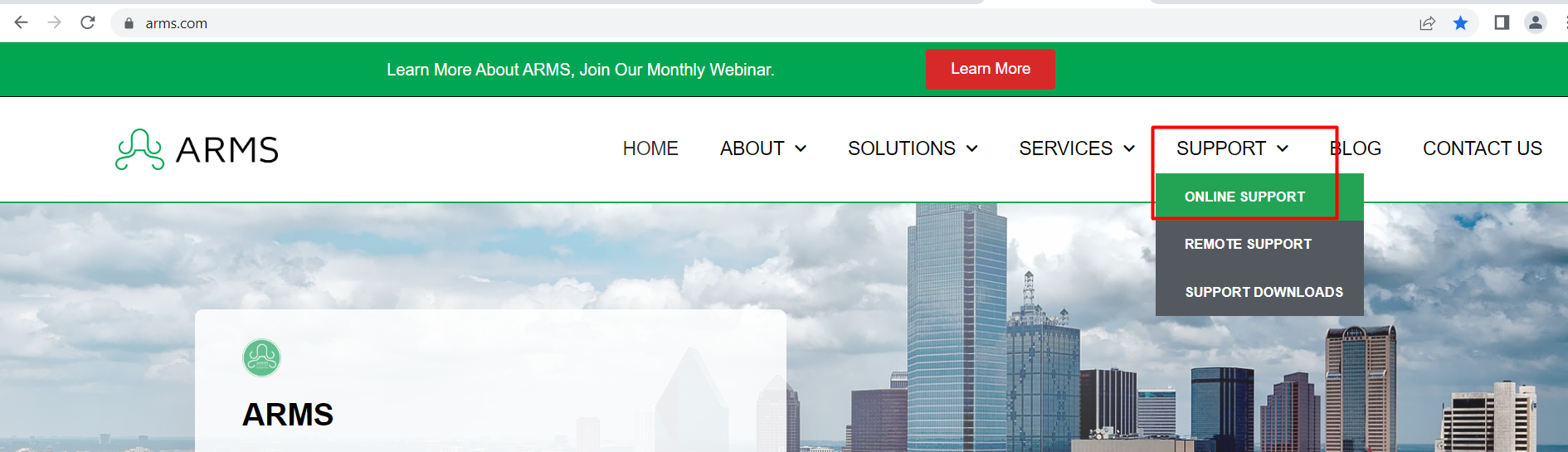
Alternatively, the users can go to https://arms.com/, select Online Support, and it will redirect to the ARMS Support Site login screen.
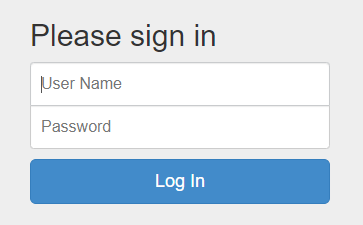
Log in using the ARMS Support Site login information. Please note that the ARMS login will not work on this site. If users do not have an ARMS Support Site login, ask their ARMS Admin if they have a login for the department to use, or contact ARMS Support at Support@ARMS.com to be issued a login.
Navigating the ARMS Support Site
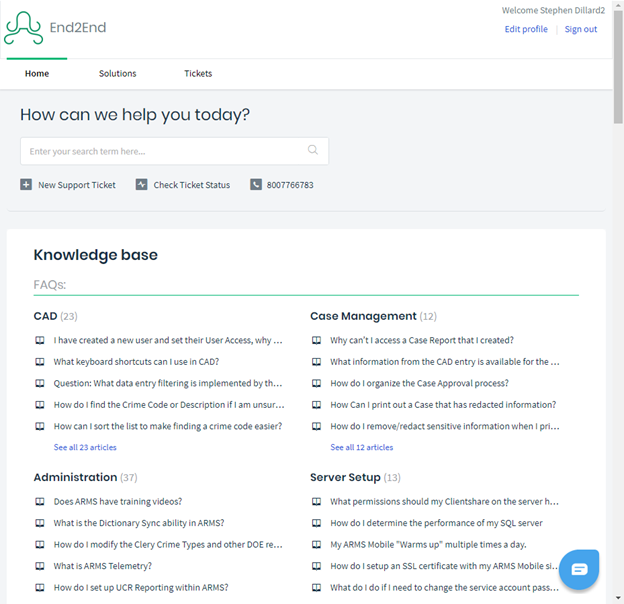
After logging in, the Admin will be able to see the home screen. Across the top, the user will find three tabs: Home, Solutions, and Tickets.
Home and Solutions both show a list of our support document categories. Inside each section, the Admin will find several topics, and each topic has several articles pertaining to the topic.
Tickets will show the user a list of their current support tickets.
There are two ways to browse through the support documents.
The first is to use the search bar to ask a question or enter keywords. The Admin will find that keywords will return better results than asking a question. For example, searching for “Parking Handheld” will return more useful articles than “How do I use my ticket writer?”
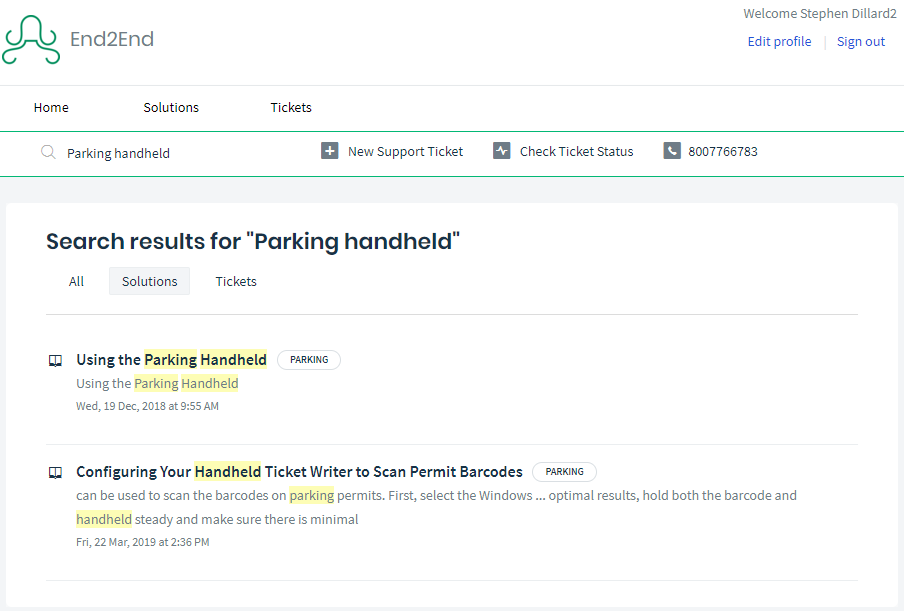
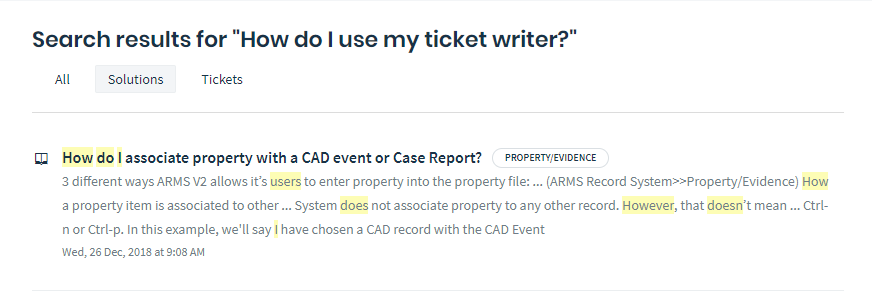
If searching for a document on desired topic is unsuccessful, user can browse through categories.
In the instance above, scroll down the page until the Admin finds Parking. Admins will find the topic of parking in two locations: FAQs and ARMS Component Documentation.
FAQs will have more commonly encountered questions like how to troubleshoot a handheld that will not sync or how to enter two citations on one ticket. ARMS Component Documentation will have more technical articles like how to set up MCW on a new handheld or the Parking Setup Menu Manual.
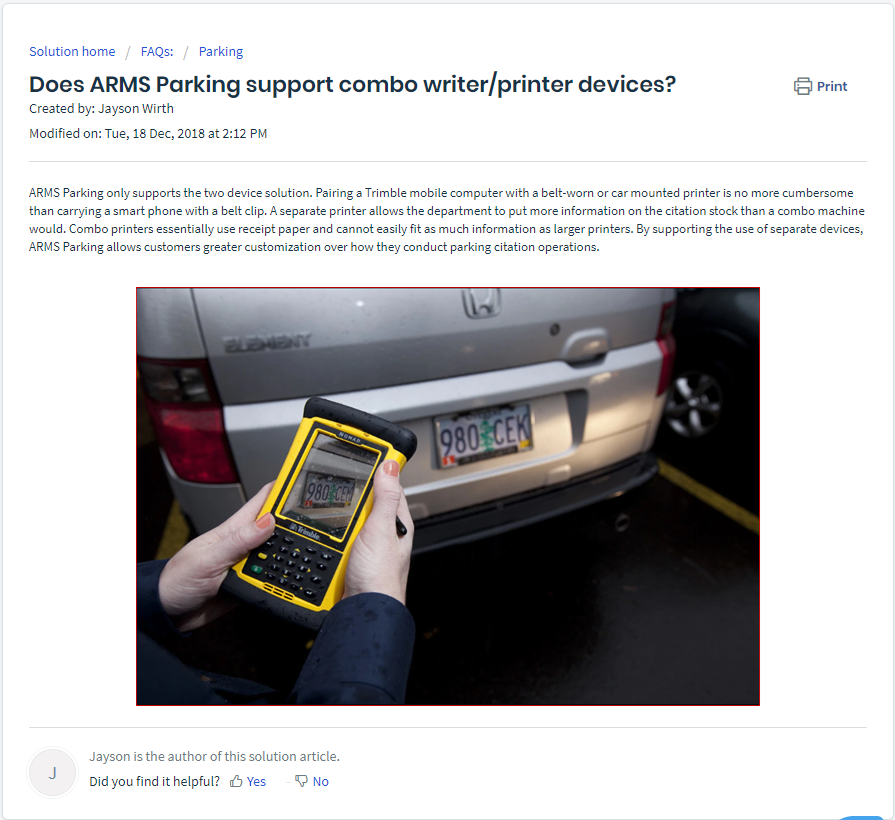
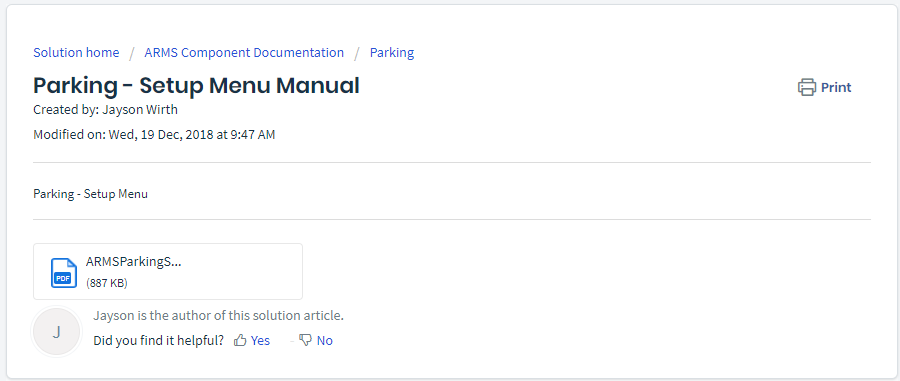
As Admins might have noticed, support articles come in a few varieties. Some articles are printed on the support site, while others require the user to open a PDF to view the article. Users can save these PDFs onto their personal computers for offline reference if necessary. There are even a few videos on the ARMS Support Site. These can also be found on our YouTube https://www.youtube.com/channel/UCN852eNsXc3bU5fDBeZQEgw
Contacting ARMS Support
If Admins are unable to find an article, or document to answer their questions, there are several ways to contact us.
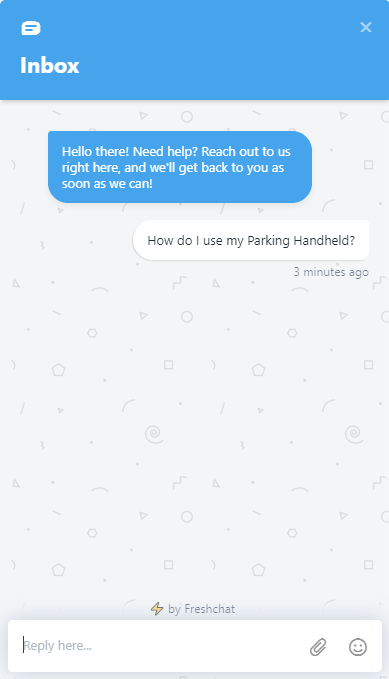
At the bottom right corner of every ARMS Support Site window, there is a blue chat bubble. Admins can use this window to ask questions to ARMS Support. Please note that this chat line is actively monitored during our business hours (M-F 8:00-5:00 CST). For any after-hours chats, our chatbot will serve to collect questions and contact information to be reviewed at the beginning of the next business day.
Submitting a ticket through the ARMS Support Site is as simple as selecting + New Support Ticket. From there, an Admin can enter their email, name, email subject, and their question. Emailing ARMS Support through the Support Site is more efficient than a traditional email because it allows ARMS support to see what articles Admins have already read so that ARMS Support can save time and not send users documents that users have already read. Once Admins have emailed in, a support ticket will be created. Any responses to this ticket will go to both their email and the tickets tab on the ARMS Support site.
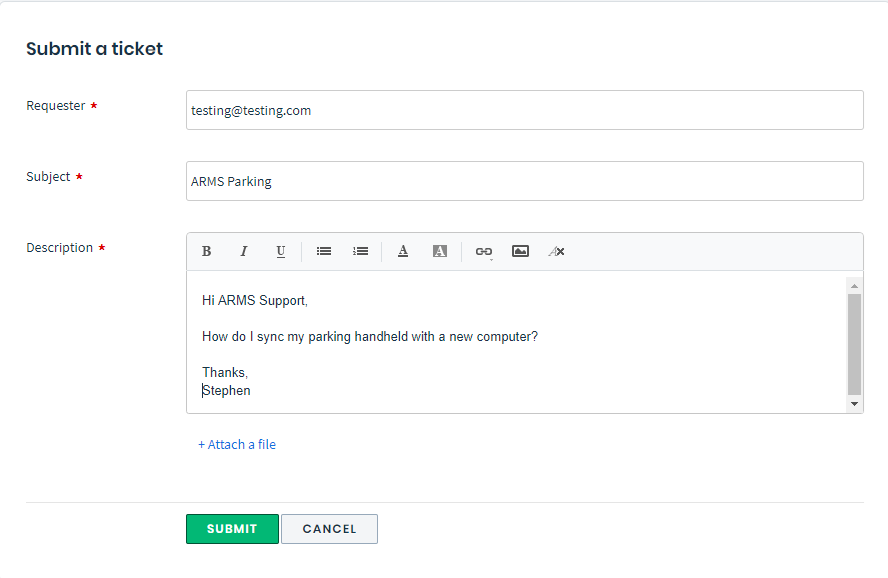
Once the ticket has been submitted, it will show up as an active ticket under the Tickets tab.