Notification Manager will send out the notifications based on the schedule that you have selected, but there are a few reasons that the notification manager may not send out the notifications.
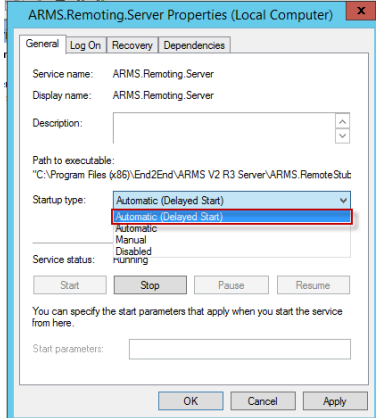
Sometimes the notifications may not send after a server restart, this is caused by the ARMS services starting before the SQL database is fully started and can be prevented by setting the ARMS services to Automatic (Delayed Start).
It is also possible that the mail server settings have experienced a change that has not been updated in ARMS.
First to have the notifications sent ensure that your mail server settings are set correctly and send a test email to yourself. If you do not receive the test email, contact your mail server admin for further assistance and verify that you have the proper mail server settings.
If your settings indicate that you are not using SSL encryption when sending the notifications, you should verify that your mail server allows this sending without SSL encryption.
Once you have confirmed that the mail settings are correct and that you are able to receive the test mail you will need to restart the ARMS.Remoting and ARMS V3 services on the ARMS application server.
If you do not have access to the ARMS application server, please contact your IT. Please note that all users should exit ARMS before the services are restarted as any users currently in the system will be kicked from the system when the services are turned off.
Please also note that a server restart is not recommended as this may not resolve the behavior if the services are set to automatic.
To restart the ARMS services stop both the ARMS.Remoting.Server and ARMSV3 Service services, start ARMS.Remoting.Server and then start the ARMSV3 Service. This should resolve the behavior and all that is left is to set the services to Automatic (Delayed Start) to prevent it from happening in the future.
Right-Click on the services and select properties. In the Start-up type dropdown box select Automatic(Delayed Start). Doing this for bother services should prevent the behavior from reoccurring.
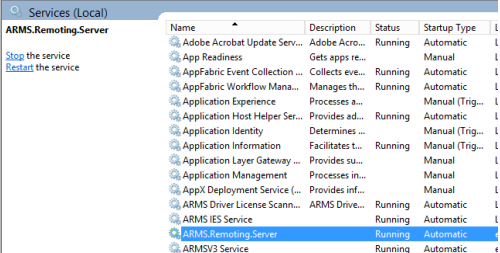
To restart the ARMS services stop both the ARMS.Remoting.Server and ARMSV3 Service services, startARMS.Remoting.Server and then start the ARMSV3 Service. This should resolve the behavior and all that is left is to set the services to Automatic (Delayed Start) to prevent it from happening in the future.
Right- Click on the services and select properties. In the Startup type dropdown box select Automatic (Delayed Start). Doing this for bother services should prevent the behavior from reoccurring.