
Simple Assault Example
Data that will get imported from Case to NIBRS Review Tab are as follows:
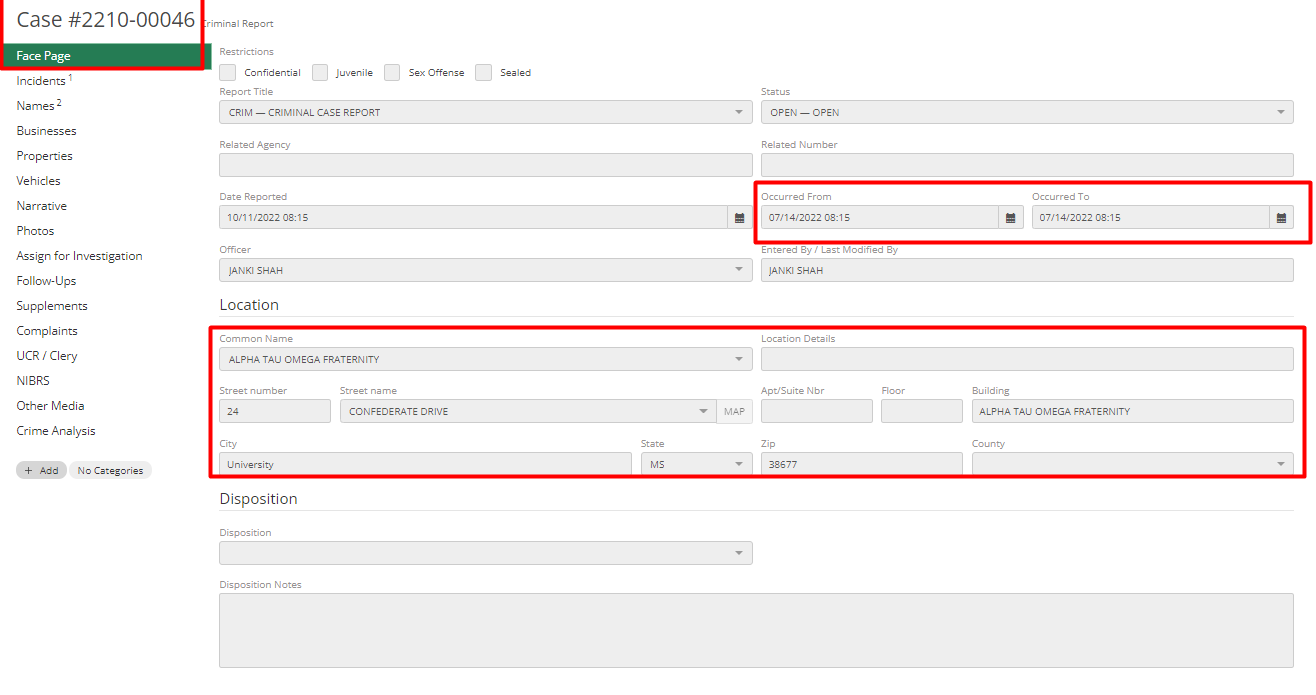
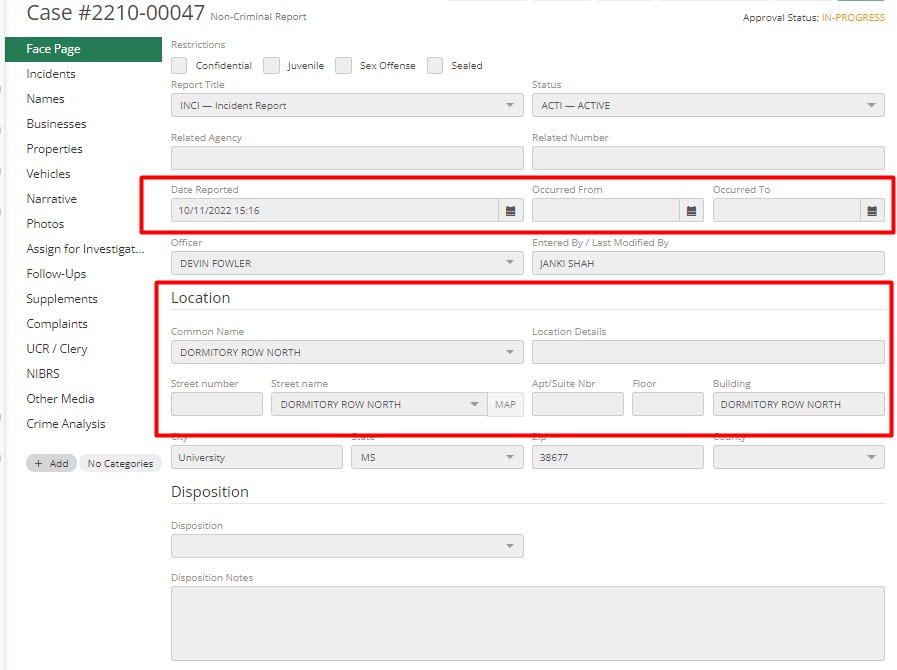
From Face Page Tab, it will import the Date, Time, and Location or NIBRS Address Type of the Crime.
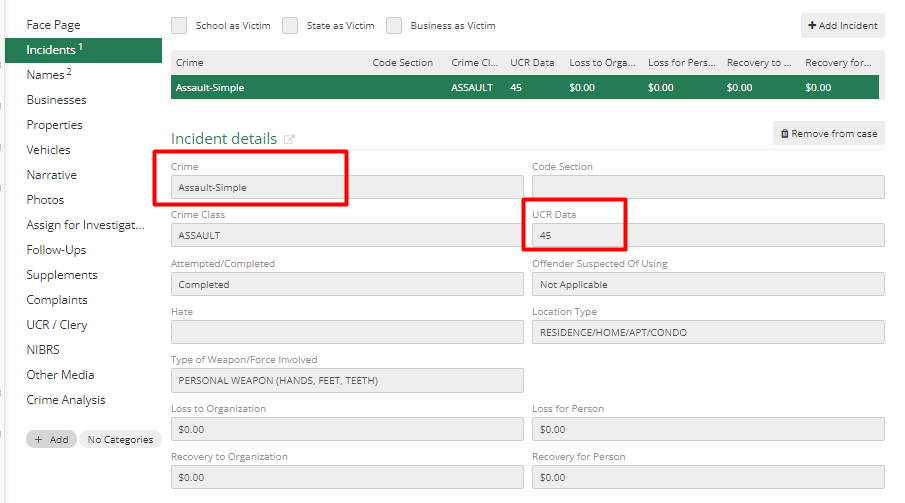
NIBRS Review will pull the Crime Code from the Code List as per the Crime Selected in Incident Tab. Simple Assault is 13B – Crime Against Person.
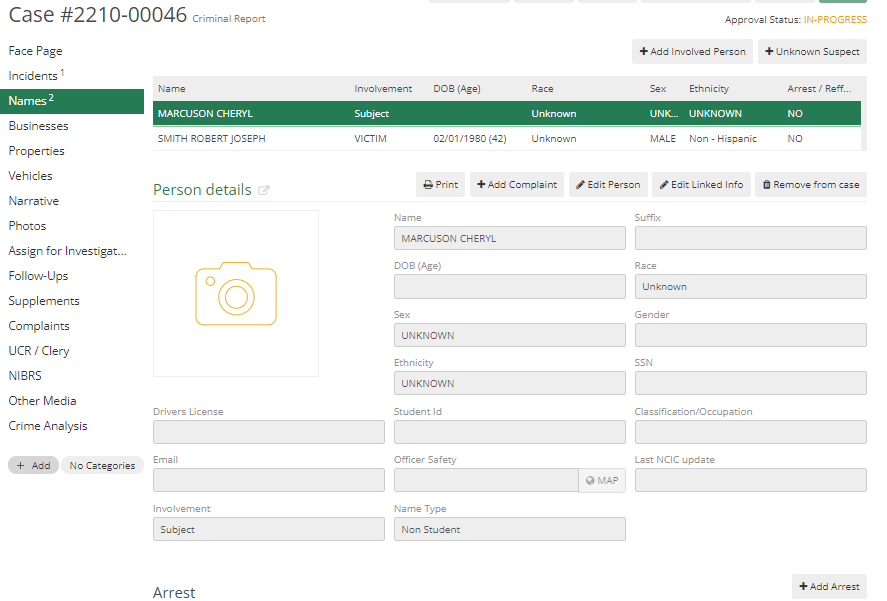
All the information about Victim and Suspect entered in Names Tab will get imported into NIBRS Review for this case type.
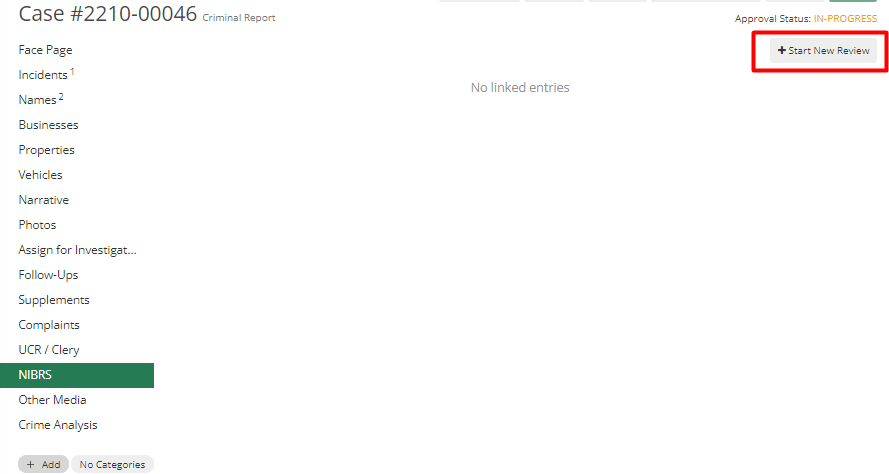
Now to start NIBRS Review, go to NIBRS Tab and click on the Start New Review button.
It will open NIBRS Review in another tab, with multiple segments in it.
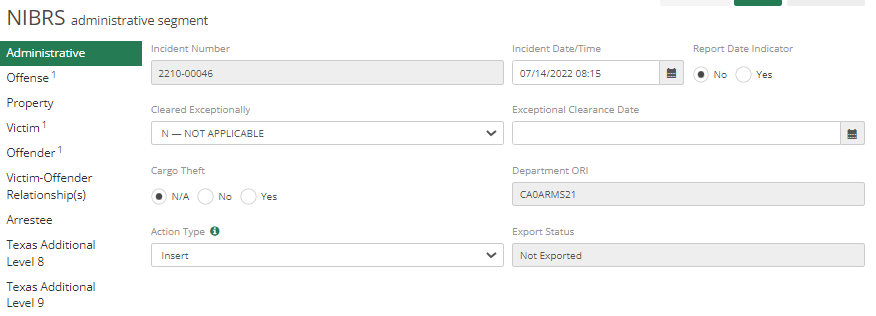
Administrative Segment: No changes will be required in this segment, as it will import Incident Number etc. directly from the Case. Hit Save and Proceed to the next segment.
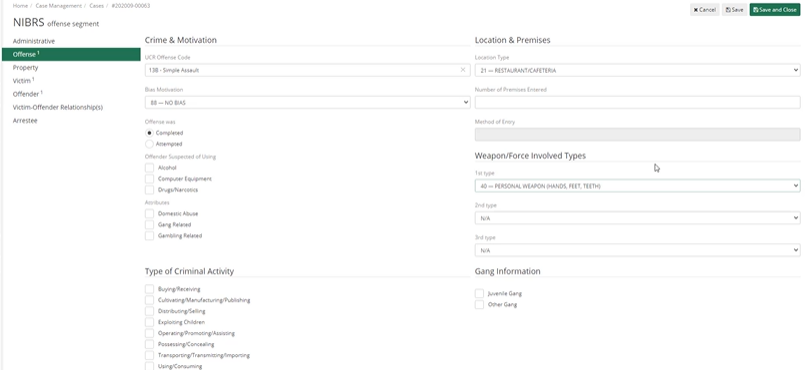
Offense Segment: It will list the offense added in the case and by clicking it, It will open up with details of the Offense. Officer needs to make sure that the Weapon in this segment is added correctly. If hand/feet/teeth are used then the officer needs to select 40- PERSONAL WEAPON(HANDS, FEET, TEETH) in Weapon/Force Involved Types.
Property Segment: This is a simple assault, so there is no property involved.
Victim Segment: Here officer needs to link the victim to the UCR Offense code. If the type of injury is not entered before saving details in the Victim segment it will show an error. The type of injury for simple assault has two options MINOR INJURY or NONE.
Offender Segment: This will import offender details from the case. so, there is nothing to be done by Officer in this tab.
Victim–Offender Relationships: In this segment, Officers are responsible for selecting a relationship between the victim and the offender.
Arrestee: There is no arrest in this case. So, no need to add anything here.
Finally, once everything is added hit Validate all button before Clicking on the Save button.
Larceny/Theft Example
Data that will get imported from Case to NIBRS Review Tab are as follows:
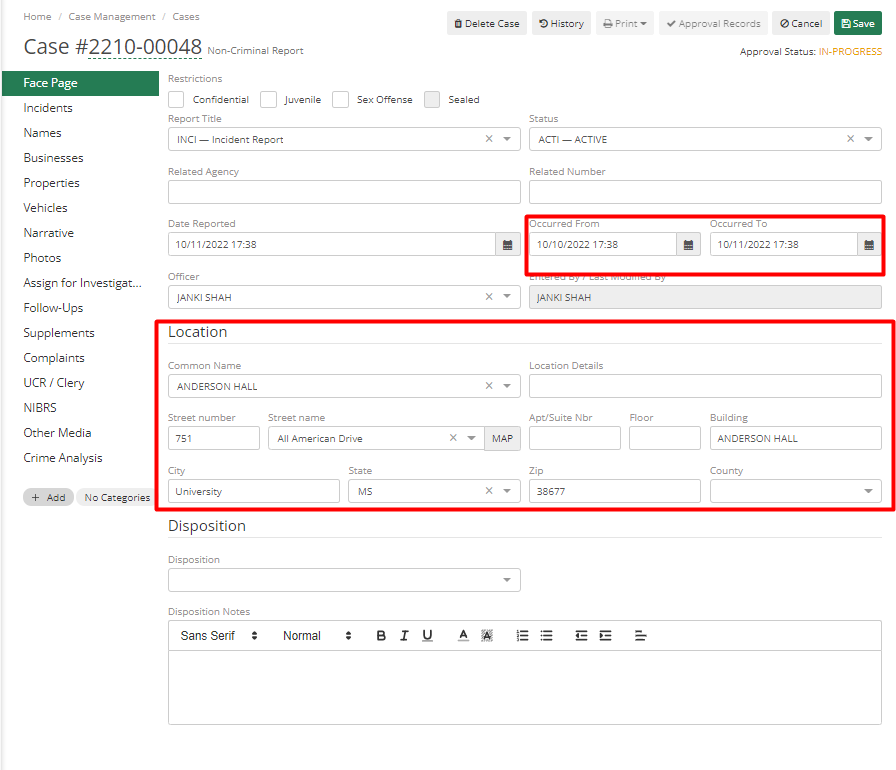
From Face Page Tab, it will import the Actual Date, Time, and Location of the Case.
In Incident Tab – Business is the victim. So, data in the Business and Property tab will get imported into NIBRS Review.
Now to start NIBRS Review, go to NIBRS Tab and click on the Start New Review button.
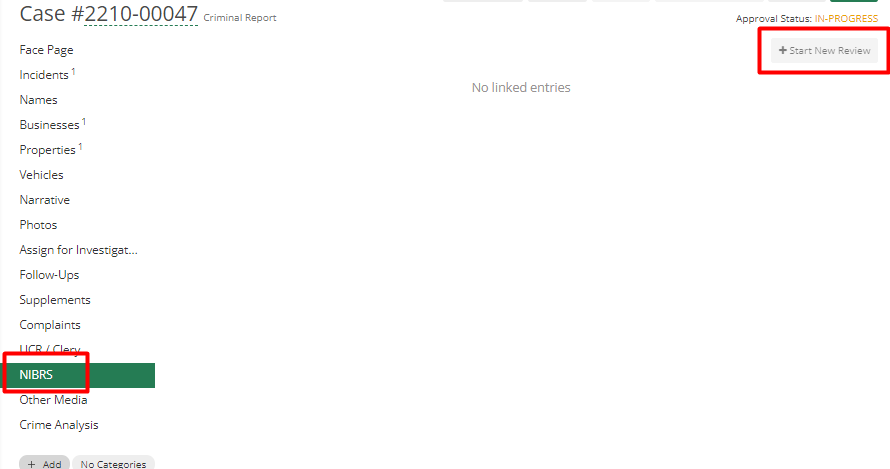
It will open NIBRS Review in another tab, with multiple segments in it.
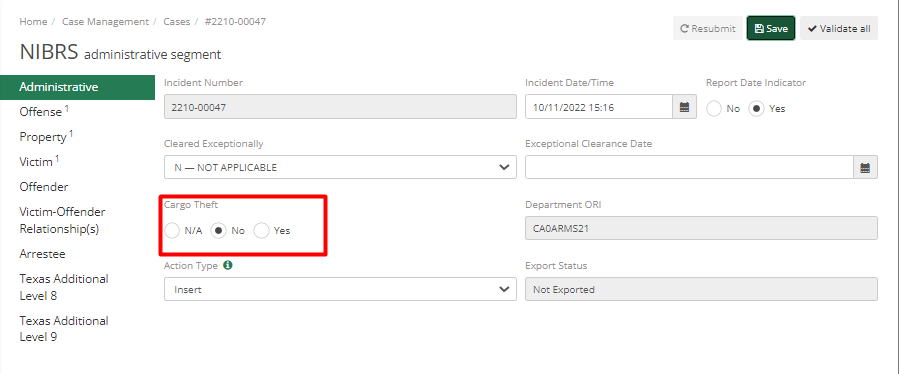
Administrative Segment: No changes will be required in this segment except to select Cargo theft. If it is not selected before saving it will show an error.
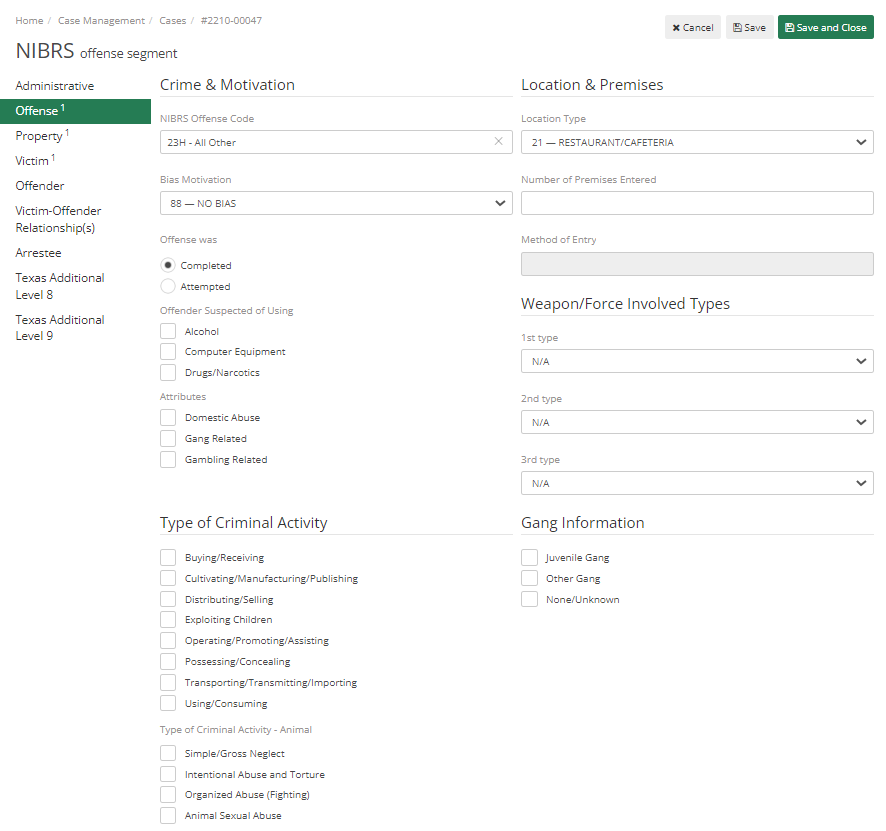
Offense Segment: It will list the offense added in the case and by clicking it, will open its detail. Check details there is nothing much required to change as all data will be pulled from Case.
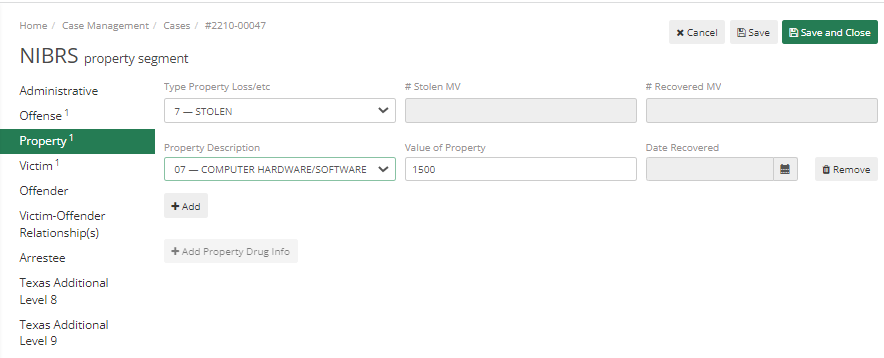
Property Segment: Property is involved, so all its details are already imported to NIBRS Review.
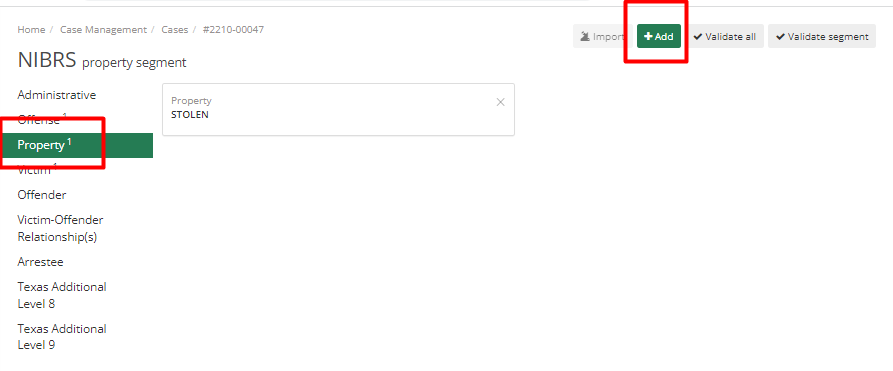
If some of the Properties are Recovered, then they can be added by clicking on add button.
After clicking the add button, it will show a screen with different fields. Select 5- RECOVERED in Type Property Loss/etc.
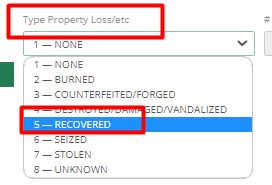
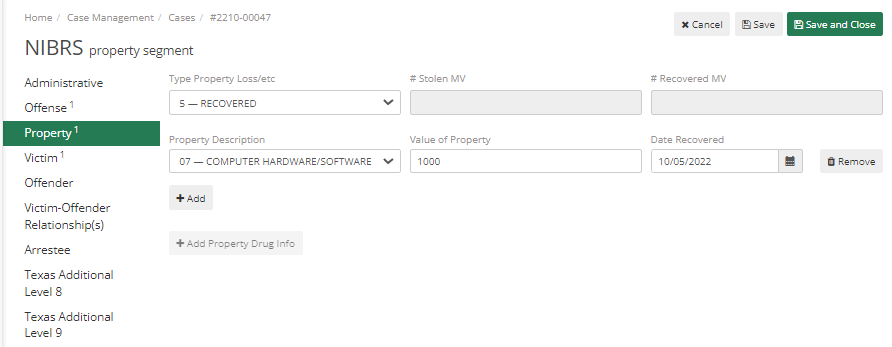
Enter the recovered amount in the “Value of the Property” field and select Date Recovered.
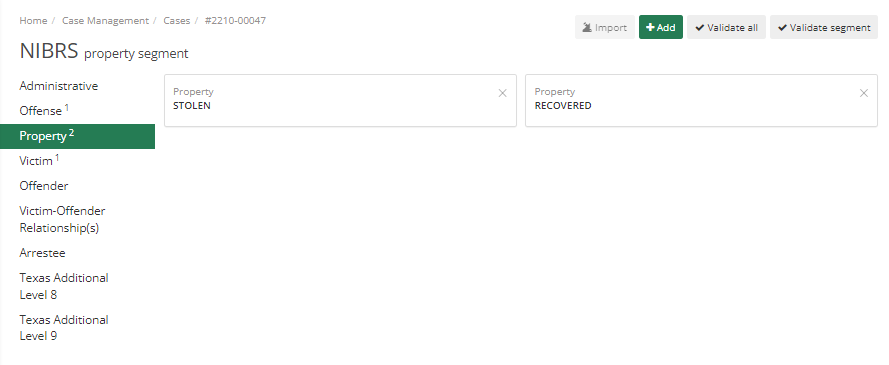
After Adding it will show Stolen Property and Recovered Property.
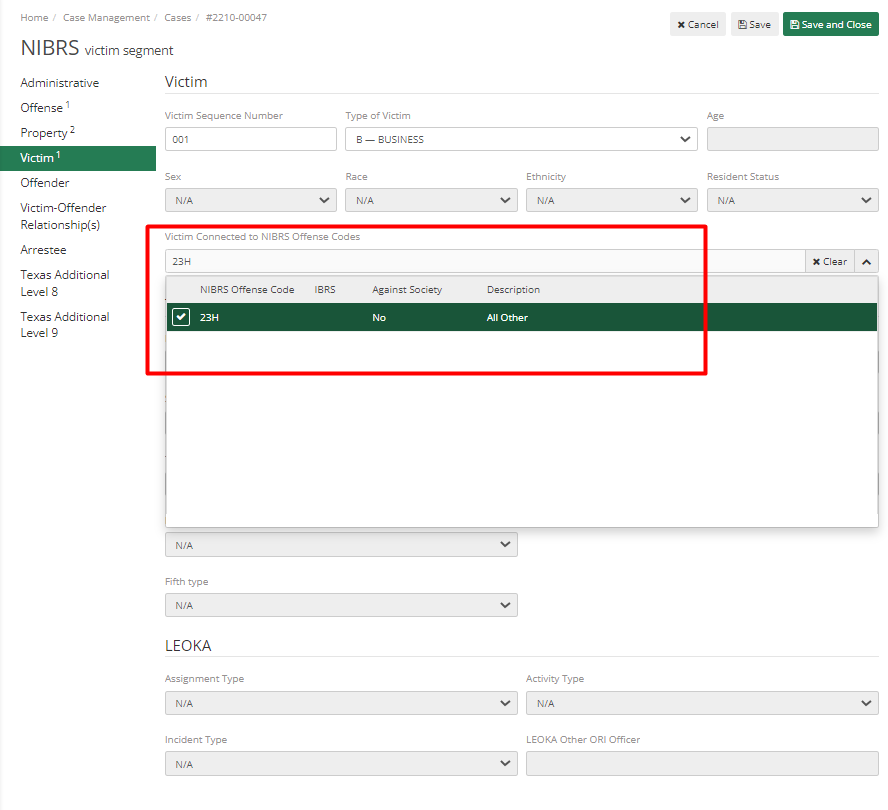
Victim Segment: Here Business is Victim, so it will not require fields such as Age, Sex, Ge, gender, etc.
But the Officers do need to select data in Victim Connected to UCR Offense codes field.
Offender Segment: For this example, we do not know who the ole computers are. So, we can a add Completely Unknown Offender by clicking the Add Completely Unknown Offender” button.
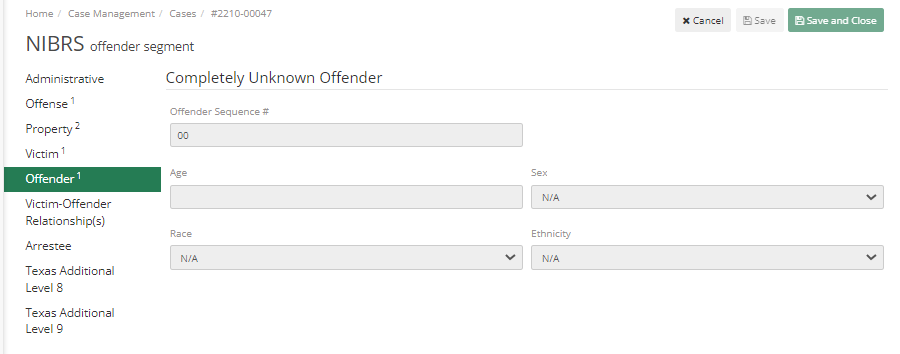
Victim–Offender Relationships: This segment will be greyed out, as Victim is Business so there can’t be any relationship between Business and Offender. If the victim was an individual, then Relationship would have been required.
If the Offender is completely unknown, it will still require adding a relationship by clicking on Add button but in the Relationship type, you can select N/A as a relationship.
Arrestee: In this example, there is no known Offender so there is no arrest in this case.
Finally, once everything is added hit Validate all button before Clicking on the Save button.
Drug Violations Example
Data that will get imported from Case to NIBRS Review Tab are as follows:
From Face Page Tab in Case Management, it will import the Actual Date, Time, and Location of the Case.
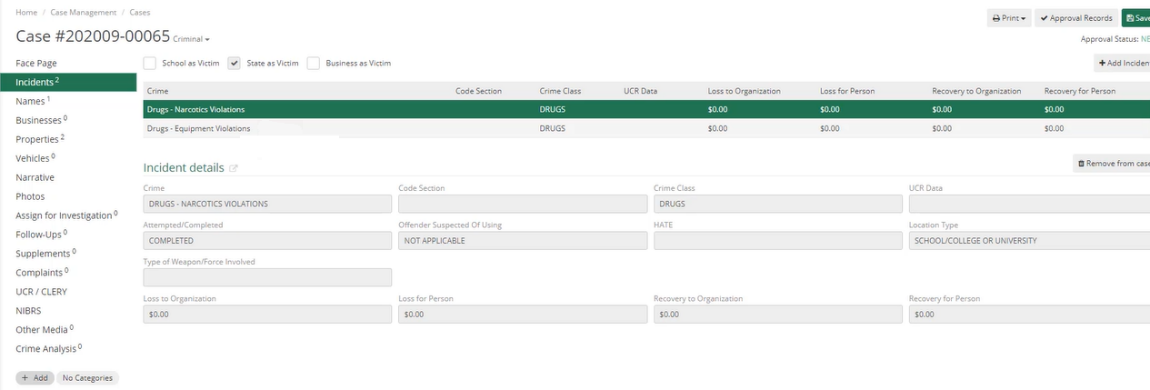
In Incident Tab – Incidents that are added in the case for this example are Drug Narcotics Violations and Drug Equipment Violations. Those incidents with their details will get imported into NIBRS Review.
In Names Tab – Information about the arrestee will get imported from here.
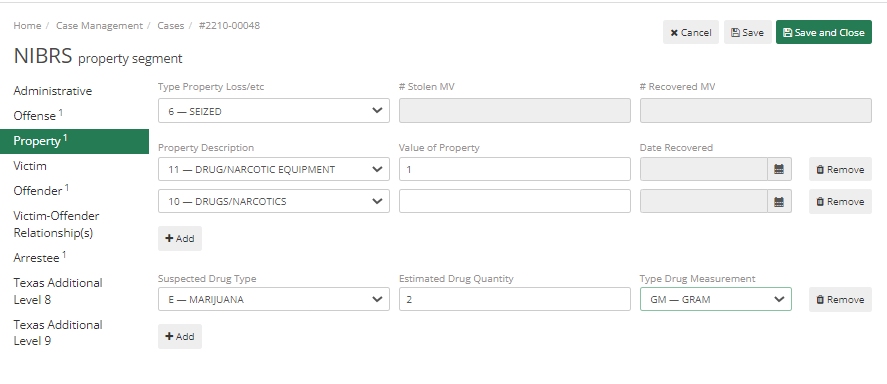
In Property Tab – All added Evidence will get imported to NIBRS Review. If for any evidence, Officer puts value as 1, then NIBRS considers that as Unknown Value for that property.
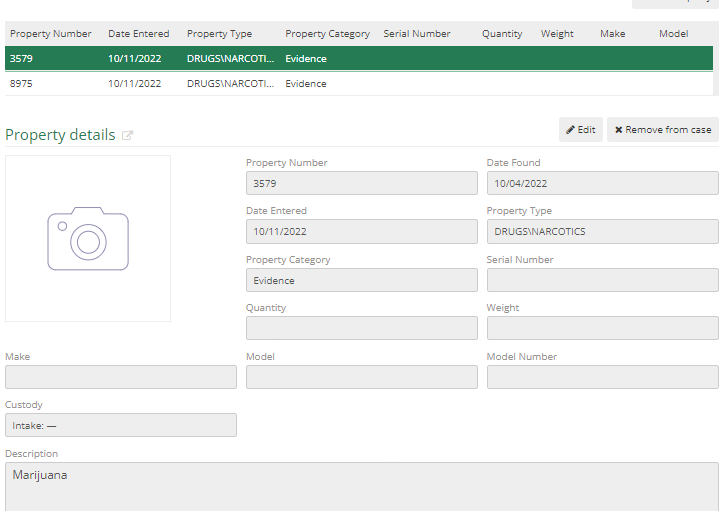
Once everything is checked in Case, Officer can start NIBRS Review. For that go to NIBRS Tab and click on the Start New Review button.
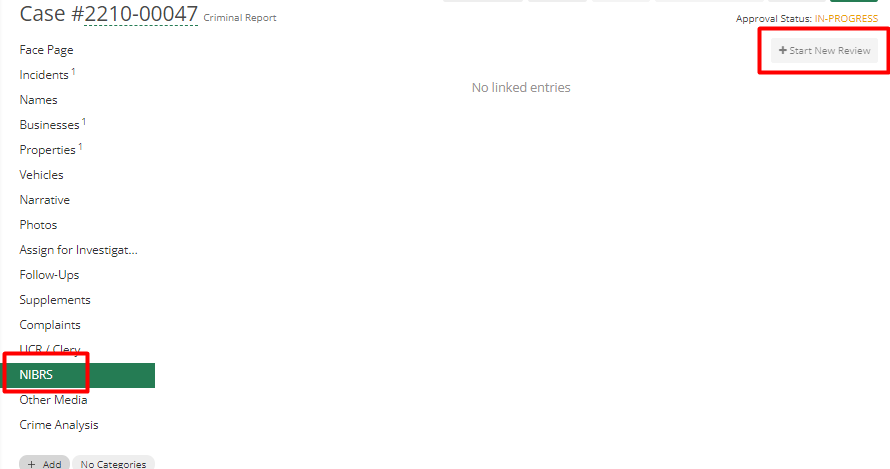
It will open NIBRS Review in another tab, with multiple segments in it.
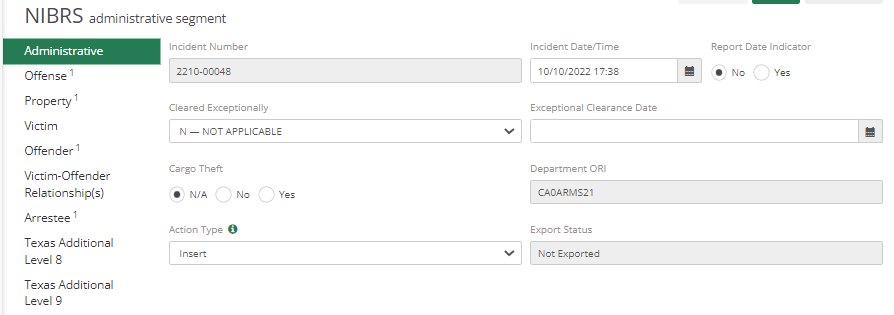
Administrative Segment: No changes will be required in this segment; it will automatically import all data. Just Hit the Save button to confirm the details imported.
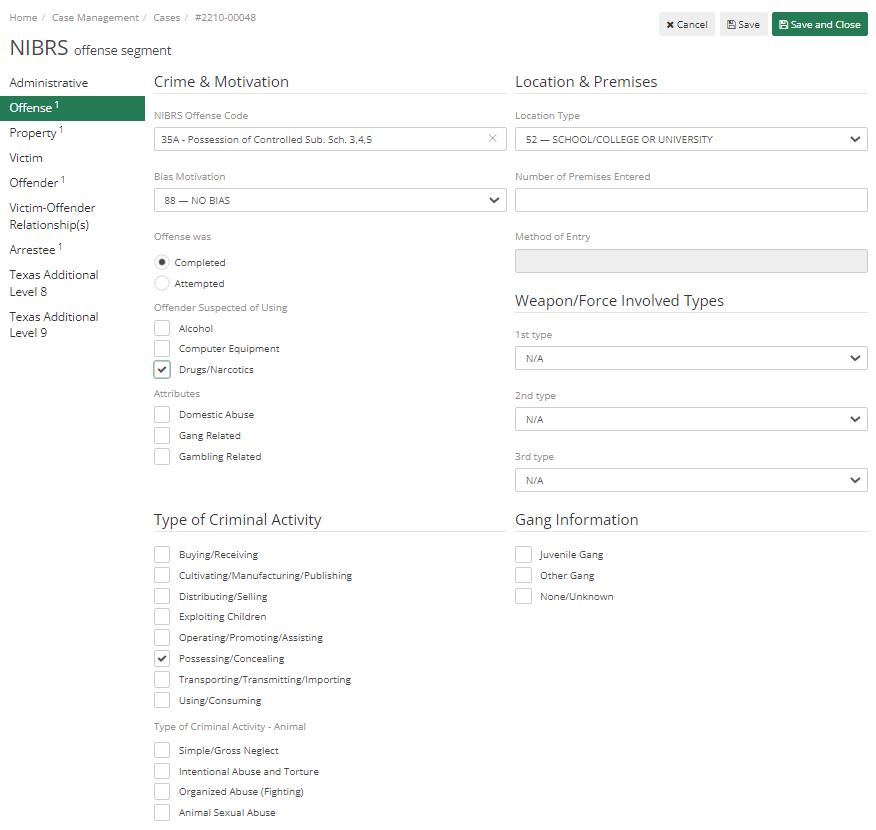
Offense Segment: It will list the offense added in the case and by clicking it, will open its detail. Check details there is nothing much required to change as all data will be pulled from Case.
For a Drug/Narcotics case, it is necessary to select the Type of Criminal Activity as Possessing/Concealing.
Property Segment: Property is involved, so all its details are already imported to NIBRS Review. The Value of Property for drugs has to be blank, as it cannot be specified.
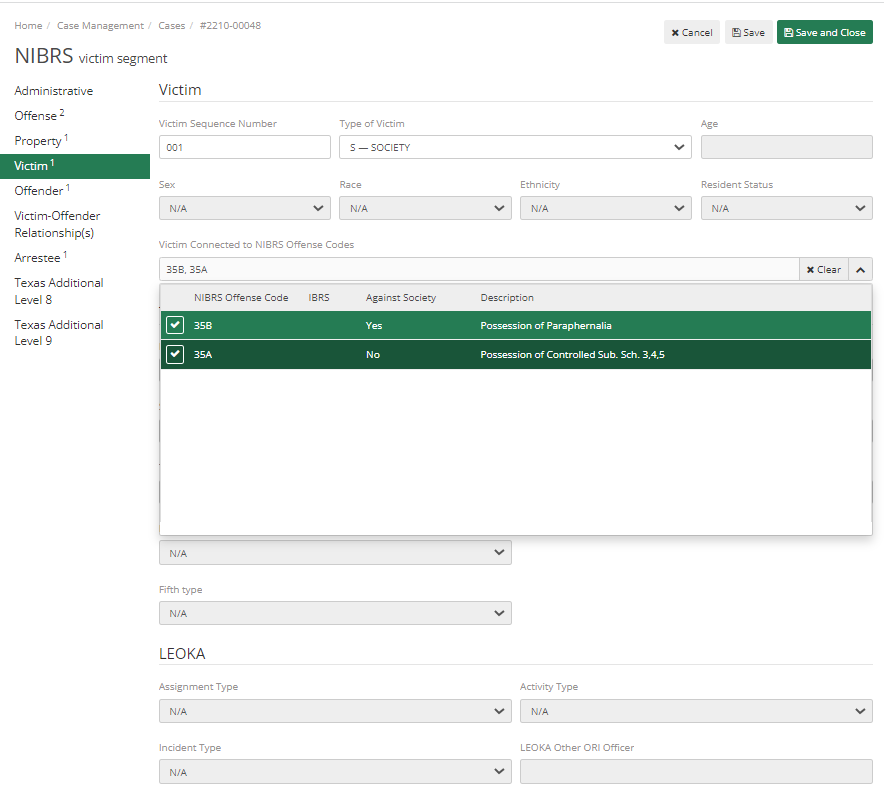
Victim Segment: Here State is Victim, so it pulls Society as Victim. Make sure to tick Offense Code in Victim Connected to NIBRS Offense Codes.
Offender Segment: For this type of case all data gets imported from the case, and nothing is required to change.
Victim–Offender Relationships: This segment will be greyed out, as Victim is Society so there can’t be any relationship between Society and Offender. If the victim was an individual, then Relationship would have been required.
Arrestee: This information will be imported from the case report and will not require any change. Add details if the Suspect was armed with weapons and add NIBRS Arrest Offense Code.
Finally, once everything is added hit the Validate all button before clicking the Save button.