Notification Manager is a way for a department to send out email notifications to both users within their ARMS system and anyone outside of their department that needs to receive notifications about certain events that occur at certain locations.
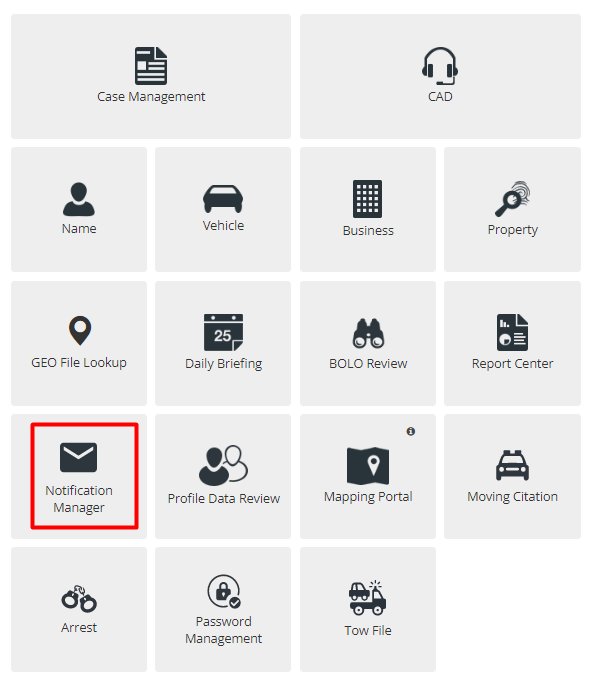
Go to the Notification Manager module on the ARMS home screen.
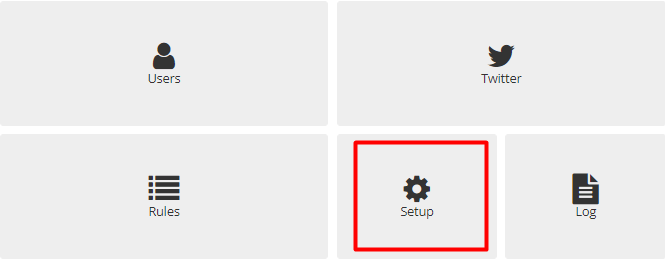
Find the Setup button on the home screen of the Notification Manager module.
Mail Details
Set up your Mail Server information by Navigating to Notification Manager>Setup>Mail Server and choose the email address and name that you would like to send this information out. You can usually find this information from your department’s Mail Server Admin/Team.
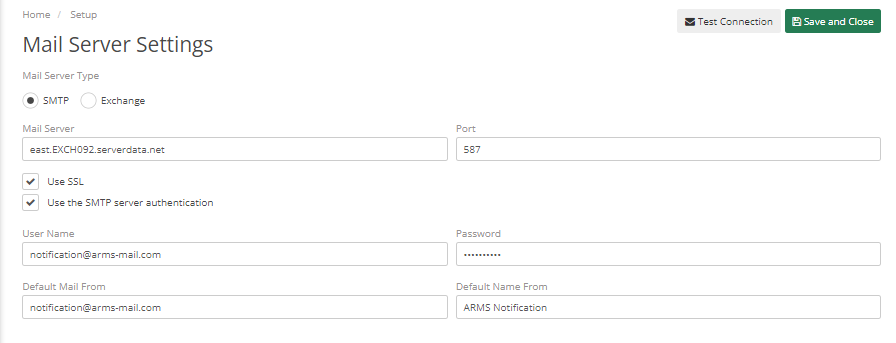
You can also limit the number of emails that send out at once and the interval (in minutes) that they send out.
Notification Emails
You can set whether you want certain emails to run/send out, what the email subject will be, the interval (in minutes) that they send out and if they expire when unable to send to a certain email.
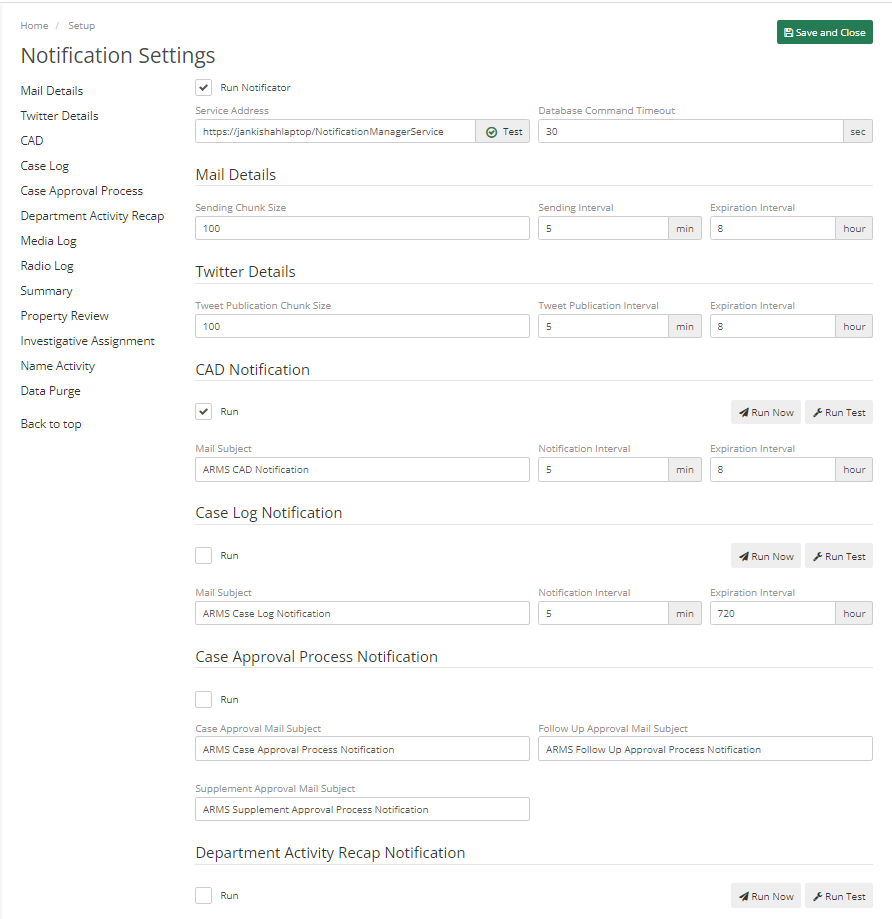
You can also choose to “Run Now” to send out any emails in the queue for that notification, or “Run Test” to test the notifications.
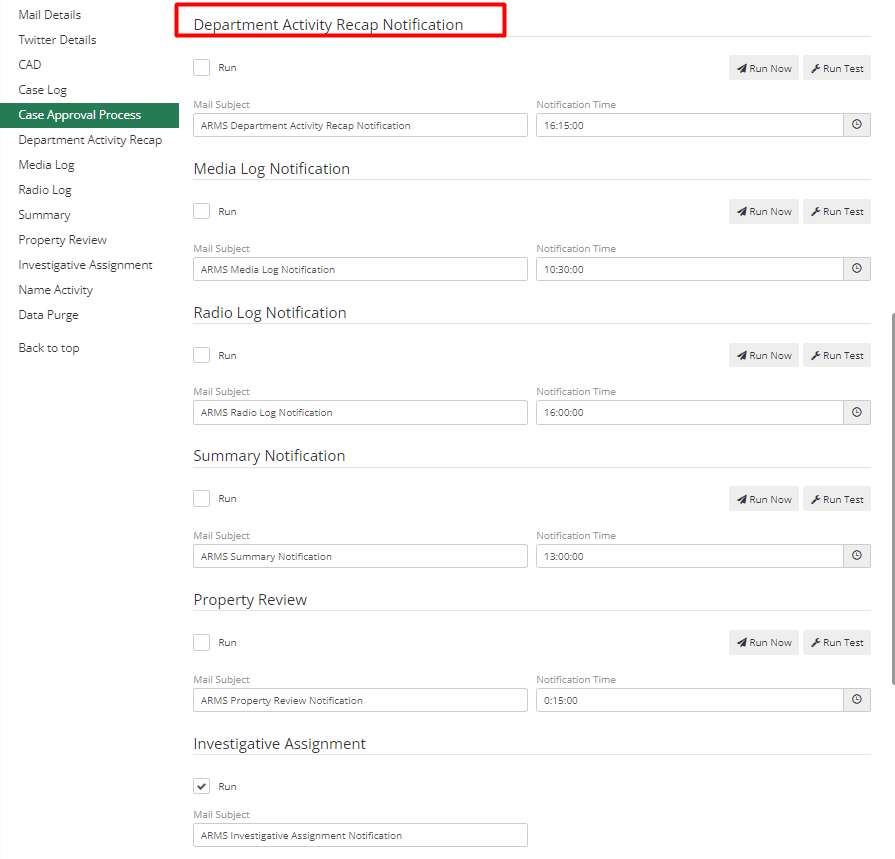
For Department Activity Recap, Media Log, Radio Log, Summary, Property Review, and Investigative Assignment Review, and Investigative Assignment Purge you’ll need to set the Notification Time for when they will send out every 24 hours.
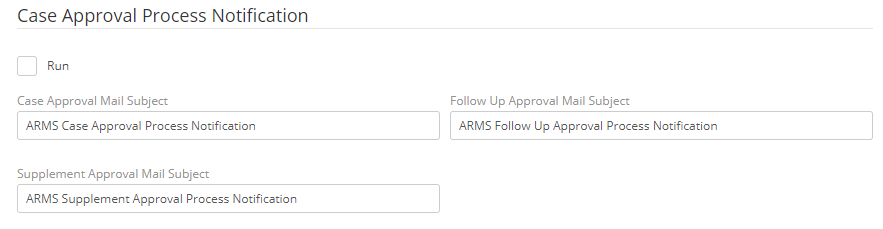
Case Approval Process Notification Emails
This cannot be assigned to users but will automatically apply to them as long as their Employee File in ARMS Setup has their email address attached. You can also change the subject lines for each.
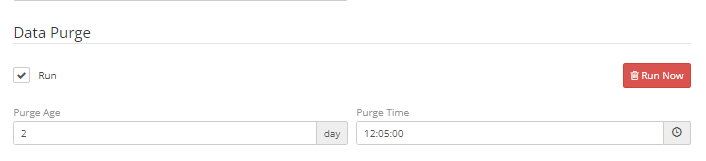
Data Purge
This will purge any unsent emails from your mail queue for the parameters that you input.