
Barcode Labels and Scanners
Purchasing the Barcode Labels and Scanners below will assist in managing your property within ARMS.
- Label Printer – Recommended: DYMO LabelWriter 550/550 Turbo
- Printing Labels – Recommended: DYMO LW Shipping Labels 2 5/16” x 4”
- USB Barcode Scanner – Recommended: IDAutomation SC5USB
Once you have those items, you can begin printing labels for the properties and use the barcode scanner to check them in and out of the system.
Before plugging in your Label Printer, you’ll want to download and install DYMO Connect. The correct version you’ll need can be found at this link – DYMO Connect Compatibility Chart
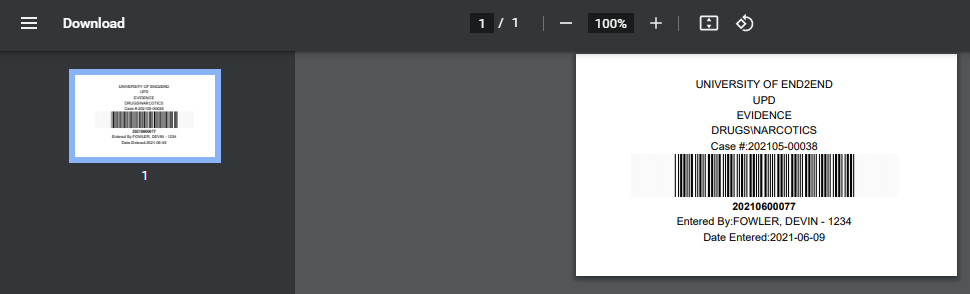
To print a barcode, go to the Property module on the home page and select the property you’d like to print a label for. Then select the Print button, then select Print Label.

NOTE: To properly use the barcode scanning system property numbers must be unique.
This will then print the property label in a new tab.
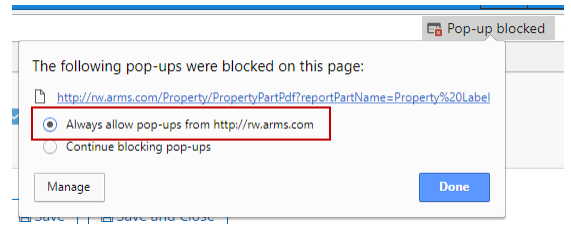
NOTE: When you do this, a message might appear in your website bar regarding pop-ups being blocked, click on that and allow pop-ups for this site.
You can then print that label and put the label on the piece of property or evidence bag.
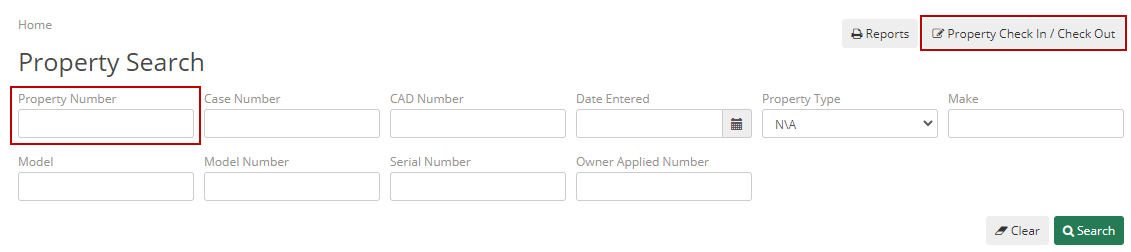
From the Property Search screen, if you’re searching for a property, put the cursor in the “Property Number” field and scan the barcode to pull up your property and information. If you want to go directly to Checking In or Out the property, select the Check-In / Check-Out button and scan the barcode to pull up the check-in or check-out screen.
Actions
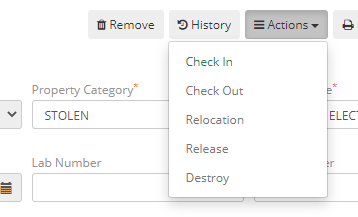
There are multiple actions you can take to a property. From the Property screen select the Actions button. The first action you can take to a property is Check In. After a piece of property has been checked in the other options become available.
To Check In the property, select that option from the Actions drop-down and Returned By will be the officer that has brought the property to the Property Clerk, or put the property in the intake location. Then Returned To will be the Property Clerk and you can then enter the Review Date for when you want the property to be reviewed, you can set this up in Notification Manager to send an email to a user(s) when this date occurs. Then you need to choose the Property Stored At and Location Bin, add any notes regarding the check-in and then select the checkbox next to the property or properties that you want to check in.
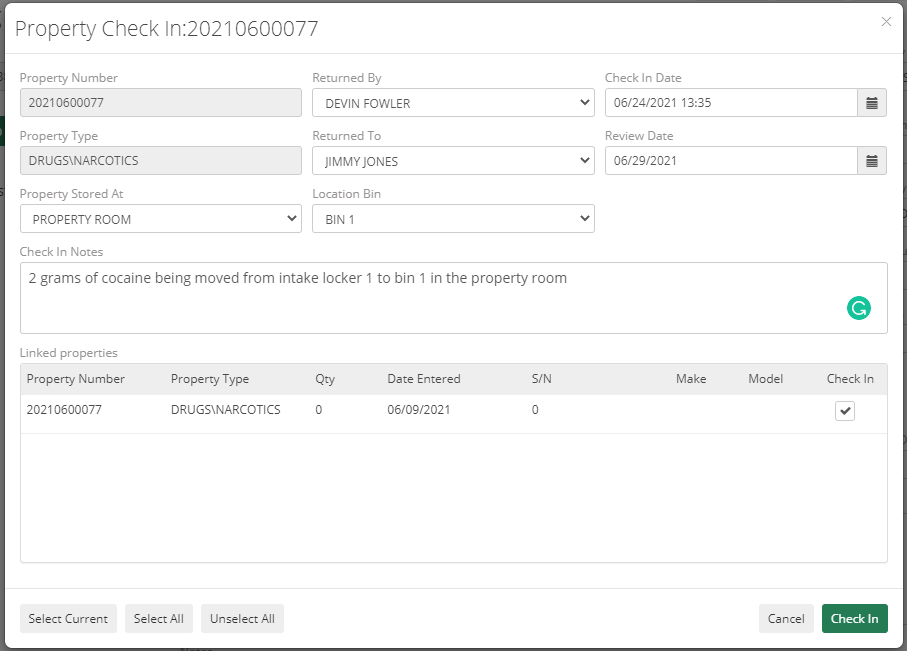
After checking in the property, you now have the following options in the Actions drop-down:
- Check Out
- Relocation
- Release
- Destroy
For Check Out, this time you’ll choose the Released By, which will be the Property Clerk, the Released To, which would be the officer being given the property, and Estimated Return Date, Check Out Type, Check Out Destination, any Check-Out Reason/Notes and finally you’ll select the property or properties you are checking out. This will also give the option of printing out a check-out receipt.
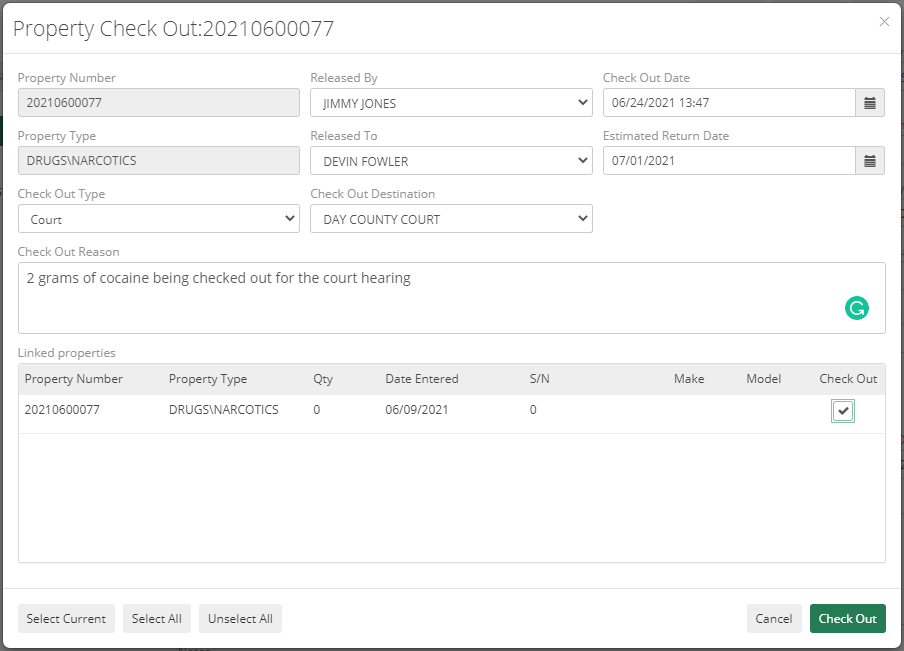
The definitions for the other Action options are below:
- Relocation – This allows you to move the property to a different Property Stored At and Location Bin without having to check out and back in the property.
- Release – This allows you to release the property to anyone outside of the department, for if you are returning a property back to its owner.
- Destroy – This allows you to mark a property as destroyed in the system, for if you are destroying drugs/narcotics or paraphernalia for example.