Vehicle Logon/Logoff in CAD
To assign a vehicle to the officer you can go to Functions>Log On/Off Units. In Log On/Off units, there are multiple ways by which you can Log On/Off vehicles.
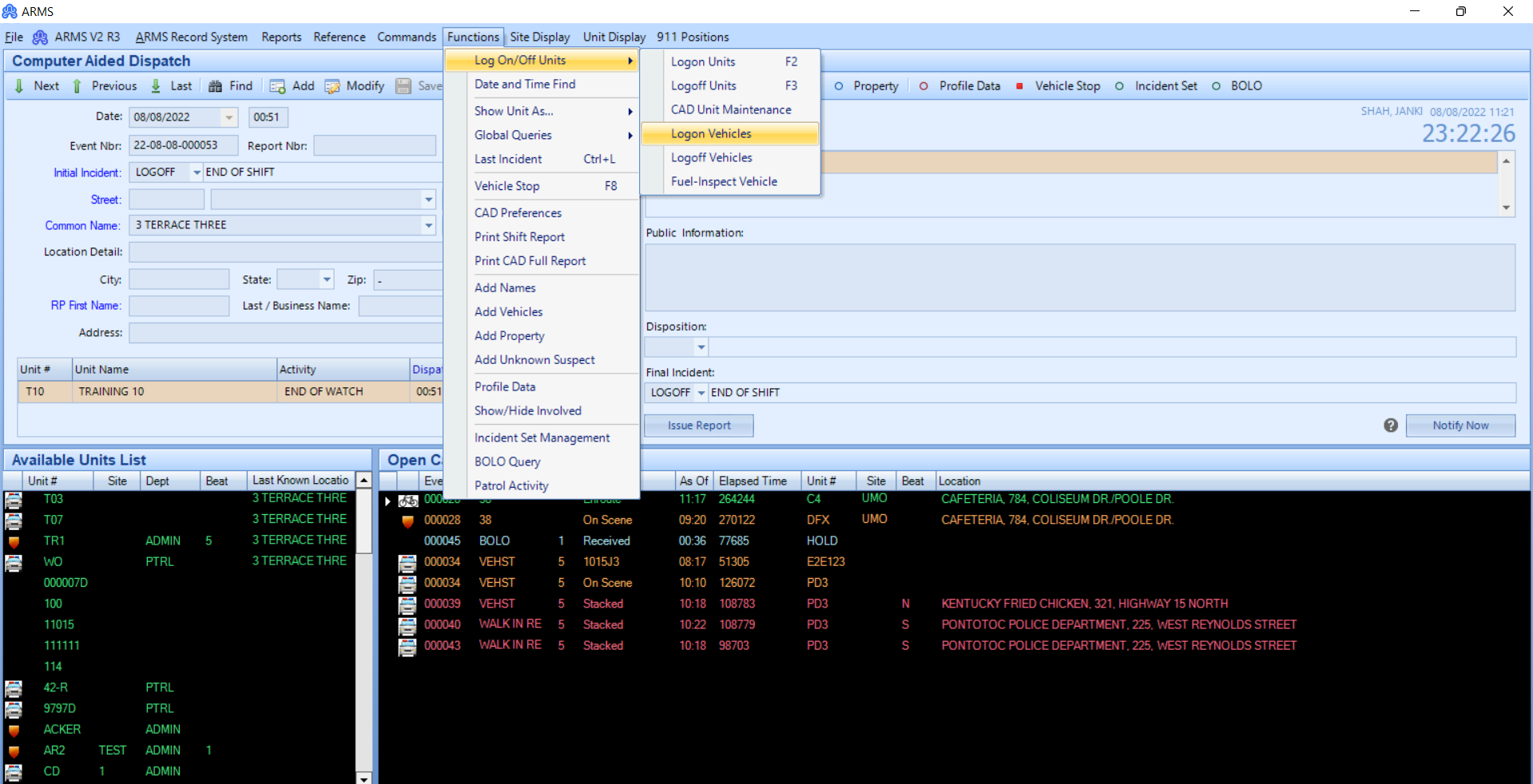
Log On Units – It is used to Log on officers and you can attach a vehicle now, or later attach a vehicle to that officer who is using it.
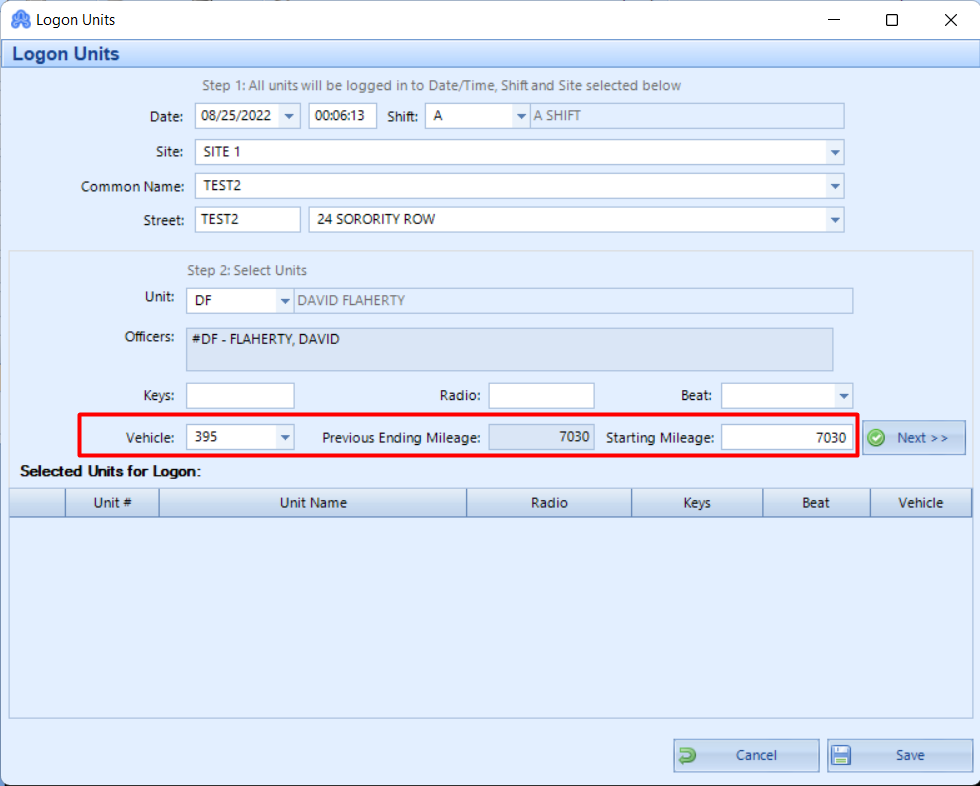
In Logon units, you must log on an officer and then attach a vehicle to them by selecting vehicle dropdown. This dropdown will show a list of the vehicles which are not currently logged on or are not assigned to any officer. Once you select the vehicle, the previous ending mileage will be automatically fetched by the system. You can keep the starting mileage as it is, or you can add a different one if someone was driving it after hours, who are not on actual patrol, or something similar. Once you’ve added all details hit Save.
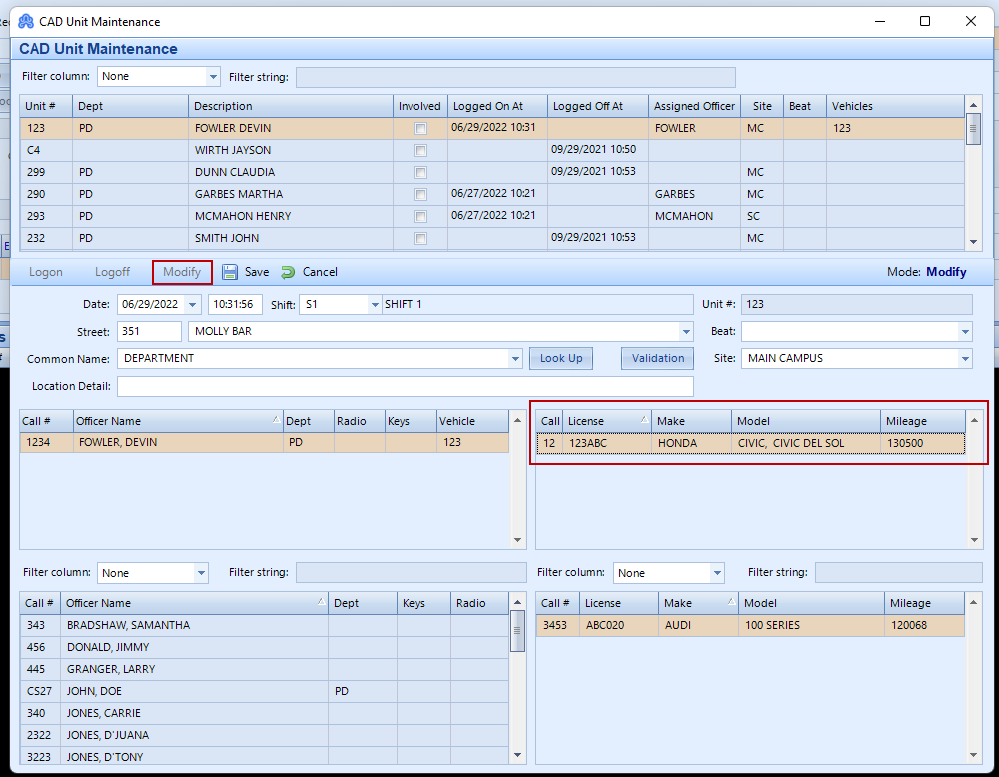
CAD Unit Maintenance – Whenever you Logon a person you can add a vehicle to them or if you have already logged on to the unit you can attach a vehicle to them.
Log on Vehicles – By this menu you can log on to multiple vehicles together with the units that are already logged on.
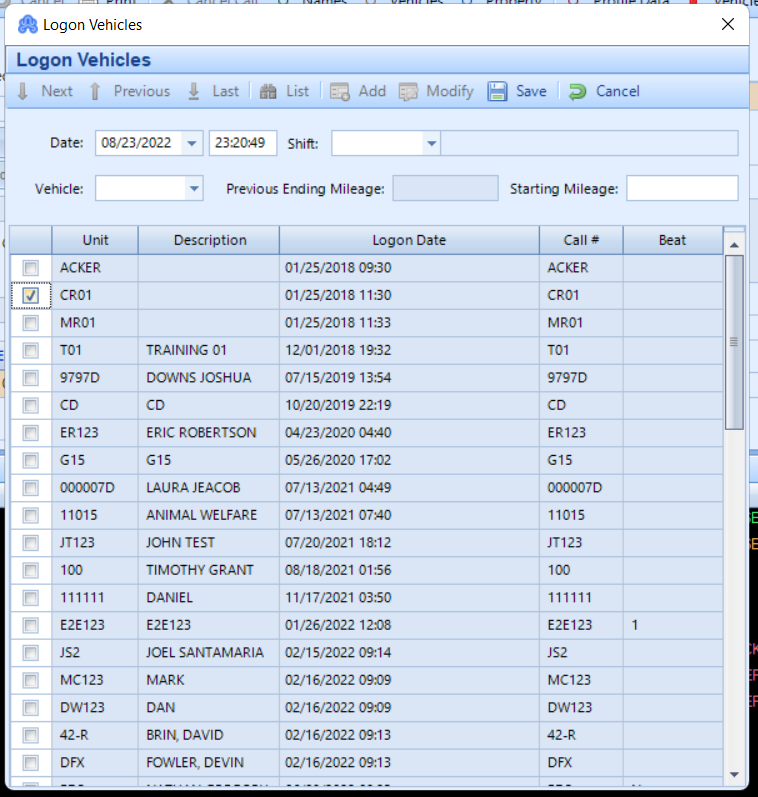
Similarly, you can Log off multiple vehicles by going to Functions>Log On/Off Vehicles>Log off vehicles.
Fuel Inspection
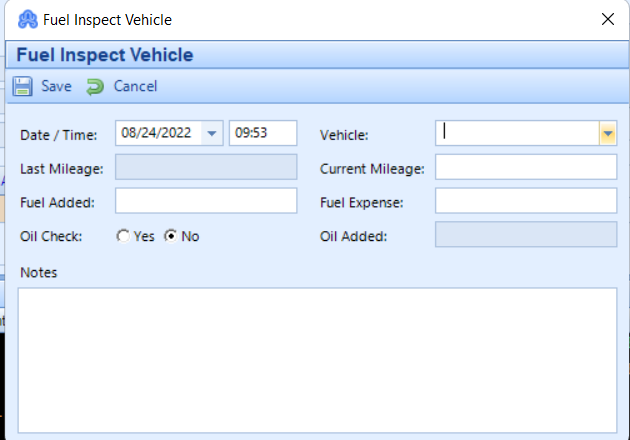
In Fuel Inspection details such as Date/Time, Vehicle, Last mileage, Current Mileage, Fuel added, Fuel Expense, oil check or not, oil added, and notes can be entered/modified.
Fuel Inspection from CAD
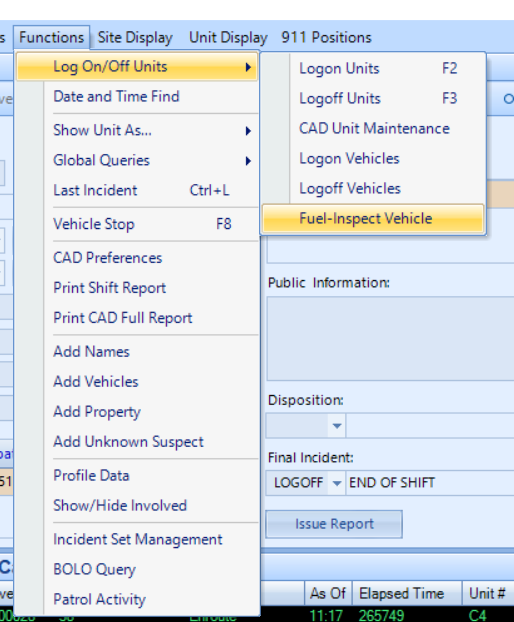
To save fuel inspection details through CAD, go to Functions>Log On/Off Units> Fuel-Inspect vehicle.
Through this menu, you can choose your vehicle, put on mileage details, gas details if added, how much the gas costs, if there was any oil checked or if any oil was added, and if there are any notes. You can add all these details and hit save. At the click of the save button, it will ask you if you want to add another record. You can hit yes if you are adding multiple records at once. If you click No, it will automatically add that details and close the dialog.
Vehicle Repair Order
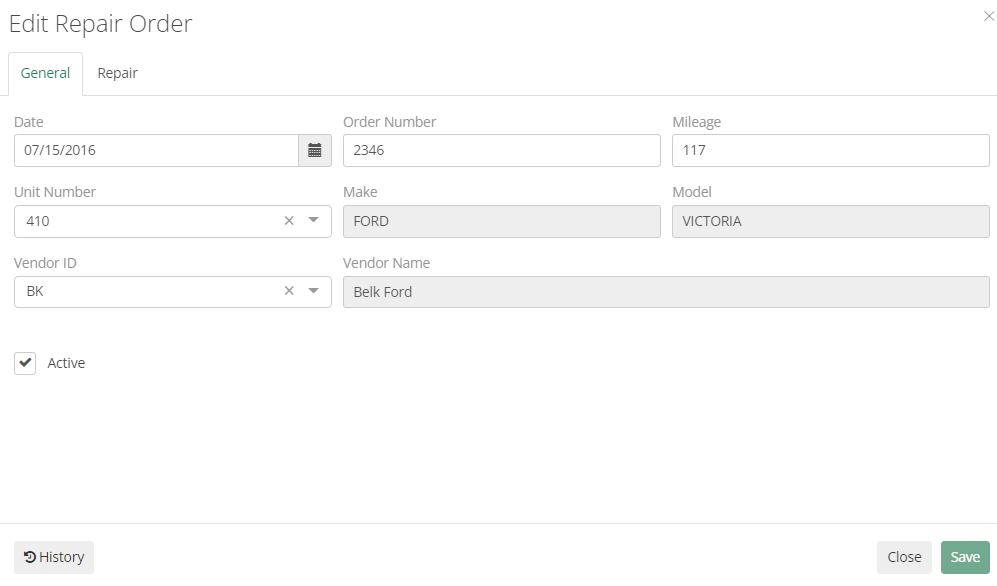
In ARMS mobile, this section helps you track the vehicles that are sent to be repaired. It consists of two tabs: General and Repair.
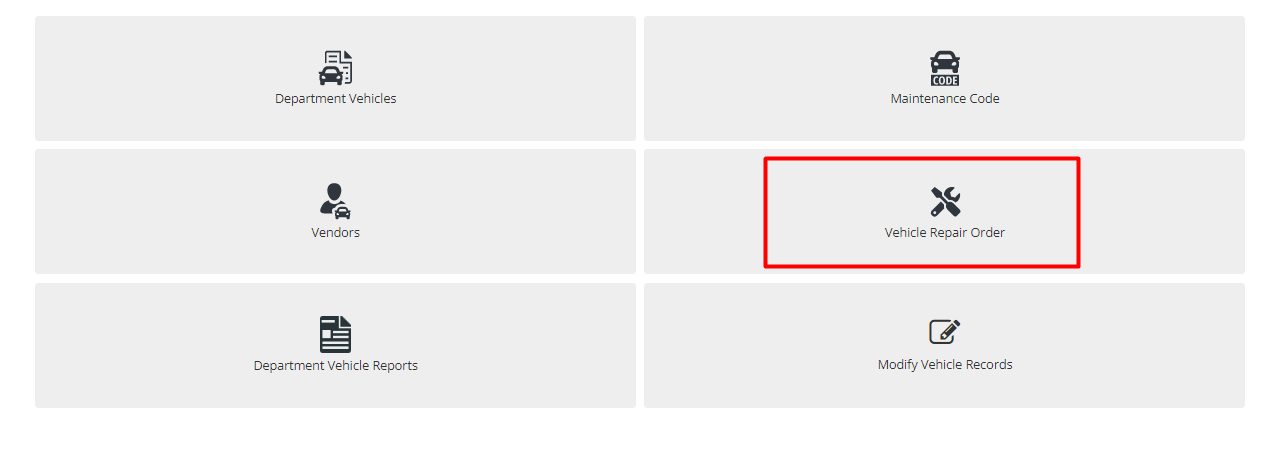
The General tab contains fields such as Date, Order Number, Mileage, Unit number, Make, Model, Vendor ID, Vendor name, and whether an order is active or closed.
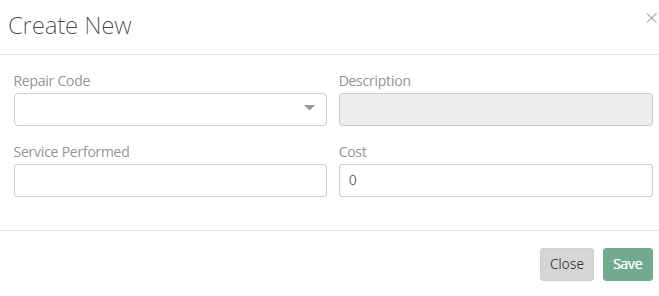
The Repair tab consists of the repair code, description, service performed, and cost of repair.
Modify Vehicle Records
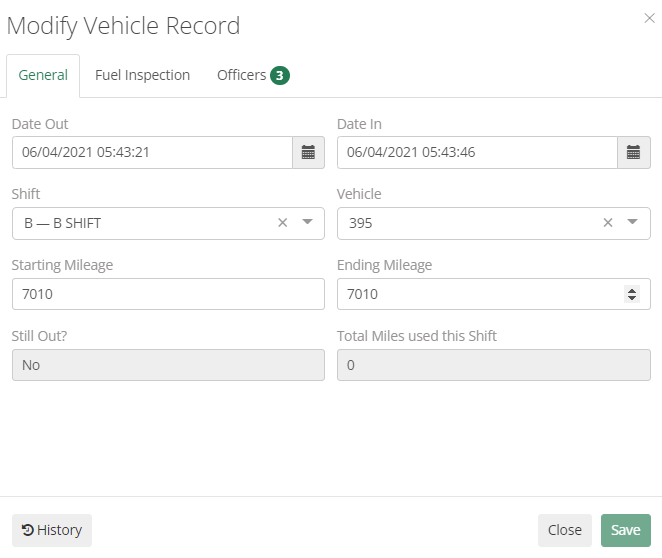
Using this section, Admins can view/modify Vehicle mileage and fuel tracking records. It consists of three tabs: General, Fuel Inspection, and Officers. In General Tab, details such as Date out, date in, shift, vehicle, starting mileage, ending mileage, and Still Out? And Total Miles used in Shift can be entered/modified.