
If a department's web deployment client doesn't install after an upgrade and receives the following error message:
- Activation of C:\Users\administrator\Downloads\ARMS.Client (2).application resulted in an exception. Following failure messages were detected
- Unable to install this application because an application with the same identity is already installed. To install this application, either modify the manifest version for this application or uninstall the pre-existing application.
Do the following:
Step 1. Uninstall the ARMS V2 R3 client from the control panel.
Step 2. Remove the ARMS folders from the below file directory.
Ex: C:\Users\*Specific User*\AppData\Local\Apps\2.0\*String of Characters*\
Step 3. Place the attached Mage.exe file on the root of C:\ drive.
Step 4. Run the command prompt as an admin.
Step 5. Type cd C:\ then run 'Mage.exe -cc'
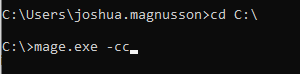
Note: This clears the cache once clicked on the app, which is what the error message is indicating about the old client not uninstalling completely
Step 6. You will then be able to install the new client at https://YourDomainName/Client