
Reporting Check
This section summarizes the process of Reporting NIBRS. It is not about actually reporting to the state, it is more about pulling up Reports for the Department or Agency in ARMS. So that department can check and look if anything is missing or something like that.
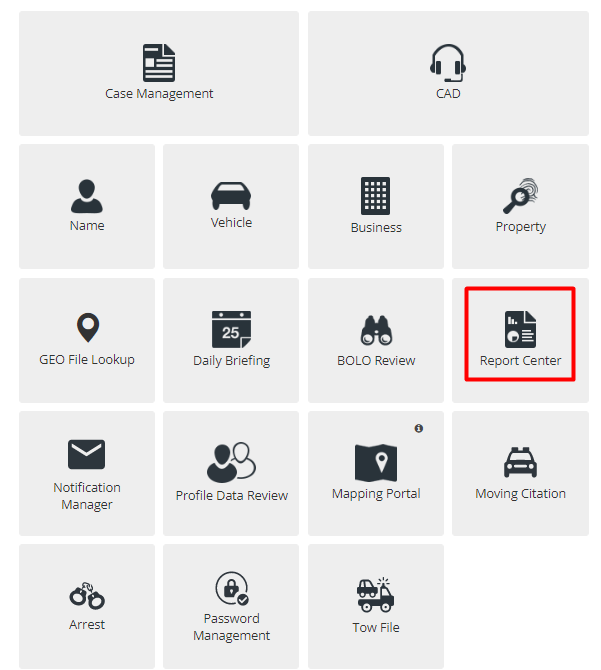
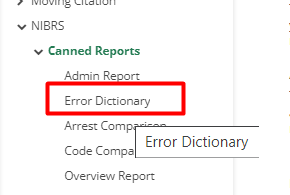
First Navigate to Report Center, select NIBRS Tab > Canned Reports >Error Dictionary.
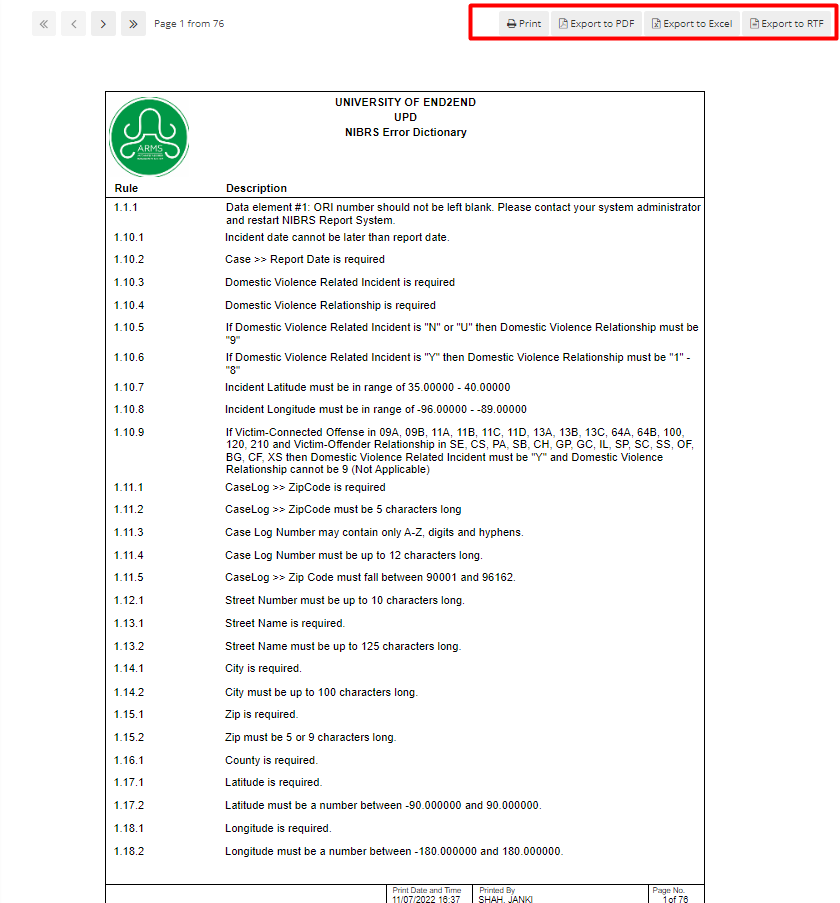
This is just a report which will show all the validation errors that are in ARMS. It has multiple pages which show a list of errors that one can get through ARMS with validation and NIBRS Review. This can be printed.
Next and the most important one is Code Comparison.
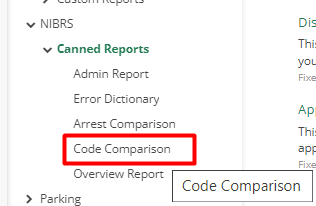
It will search through the system and check all the crime codes are set up correctly against the UCR offense code. It’s going to check all the cases for the given date range
This report will be used by agencies to compare the Crime Codes entered in Case Management with those entered in NIBRS Offense Segments.
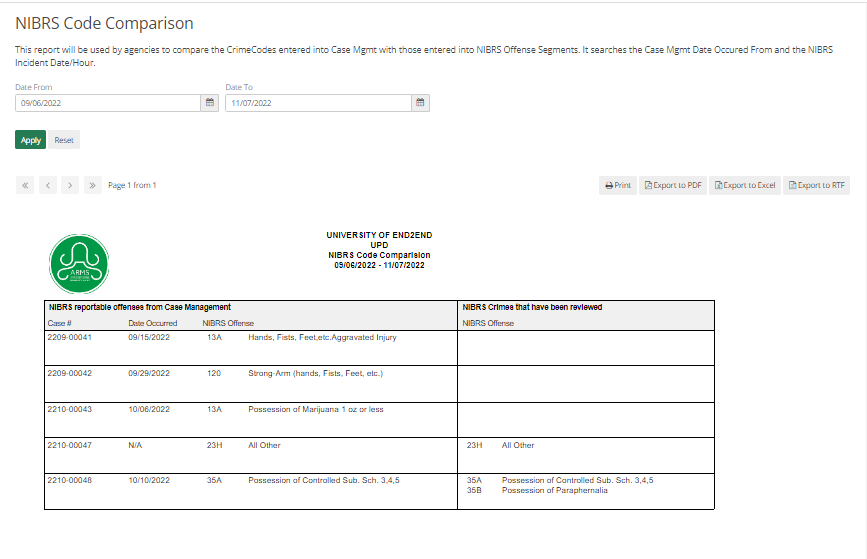
Any code starting with 9D with arrest involved in it will require NIBRS Review, other than that it will show a blank in the second column for such codes. Other than 9D codes if it is blank then it is requiring a NIBRS Review.
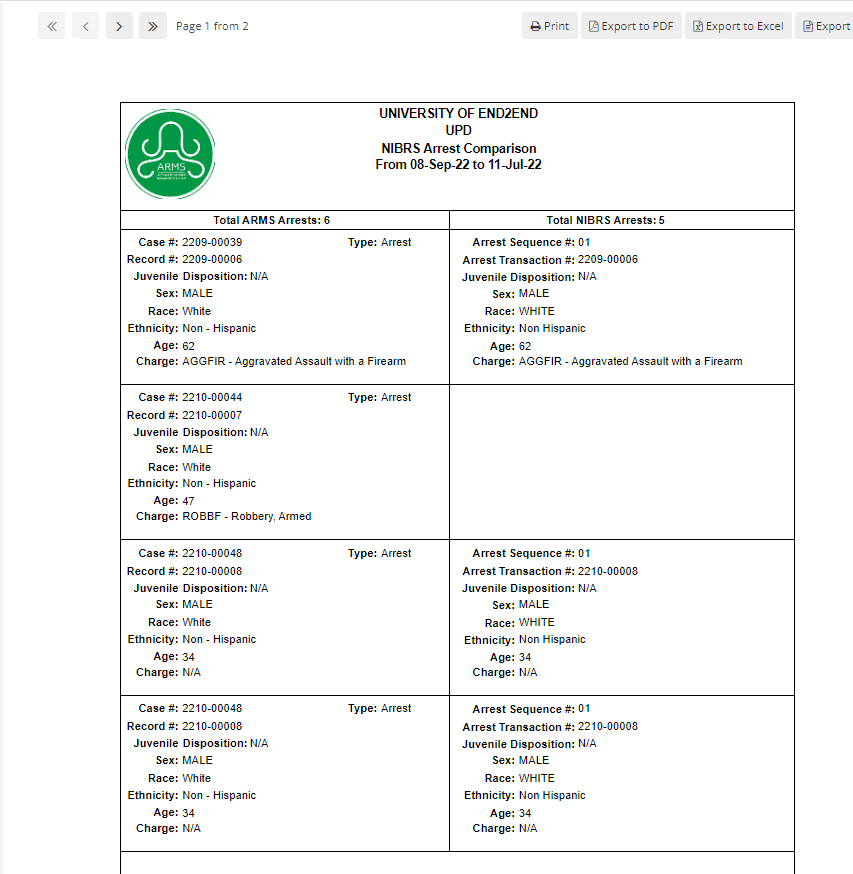
Like Code Comparison, there is another Report known as Arrest Comparison. It will show a list of arrests in ARMS and if the NIBRS review remains for that arrest. Like code comparison, if the second column is blank then it requires NIBRS.
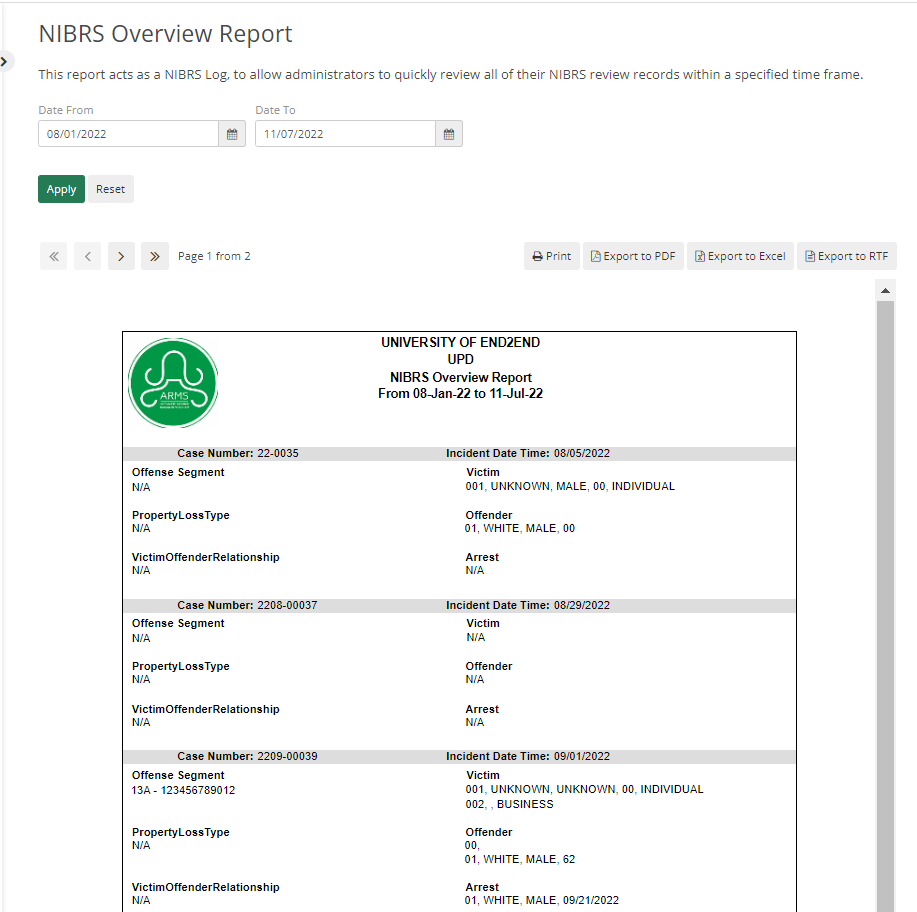
Next is an Overview Report, as the name suggests it shows an Overview of all NIBRS cases in the system. This report acts as a NIBRS Log, to allow administrators to quickly review all of their NIBRS review records within a specified time frame.
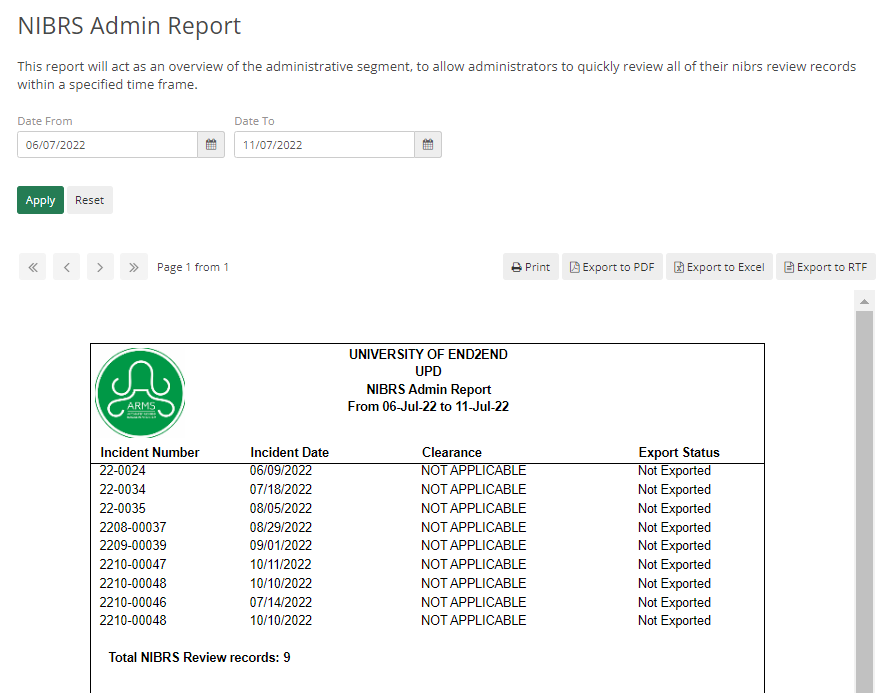
The last Report in this section is Admin Report, which is more for after the Extraction process is done. This report will act as an overview of the administrative segment, to allow administrators to quickly review all their NIBRS records within a specified time frame.
Data Extraction
When all NIBRS reviews are done in ARMS, the department can start NIBRS Data Extraction. There are multiple ways to navigate to NIBRS Data Extract.
Go to Case Management >NIBRS Extract through Home Page or from Side Menu.
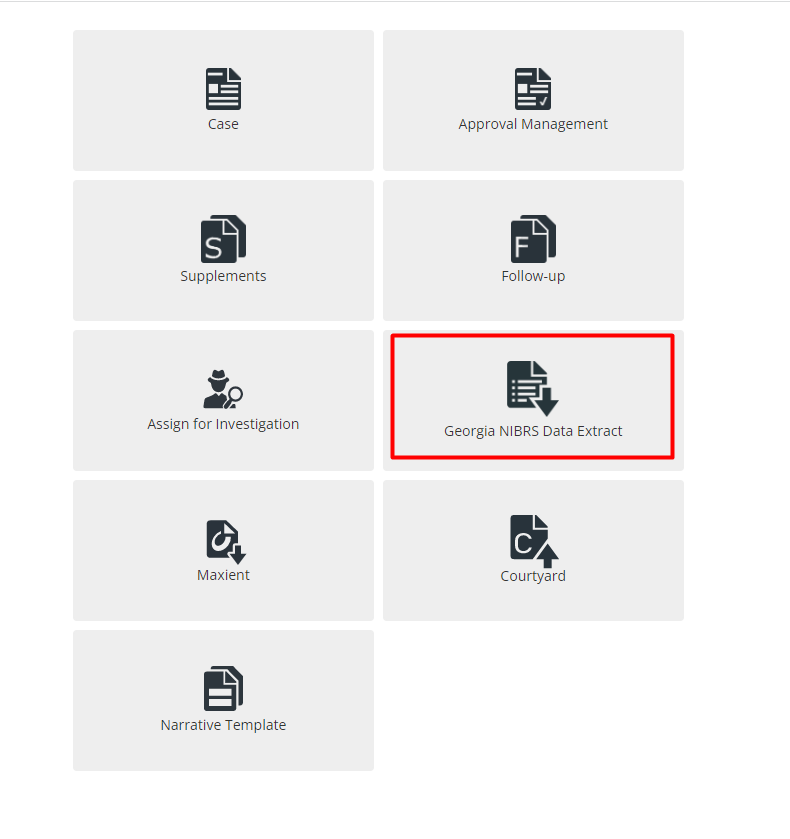
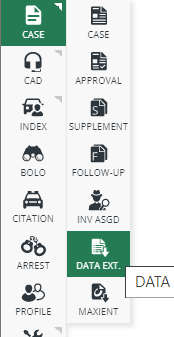
In the Data Extract screen, select the date range for which data extraction is required and select Extract Status. It will allow the user to select data for extraction from Not Extracted, Extracted, and All.
After Selection is done, the user can click on the Extract button.
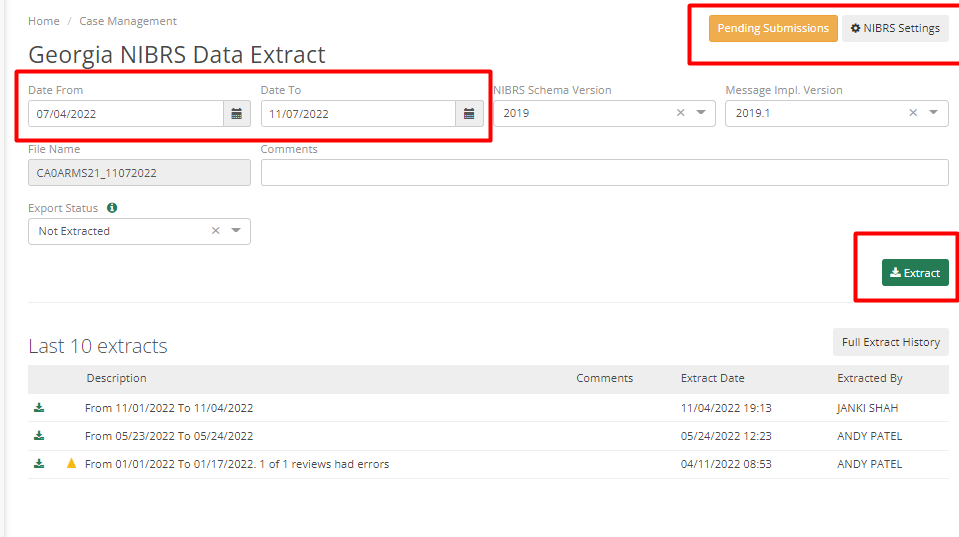
Once clicked on Extract, it will show the review option to review before extraction. Once done it will download a zip file.
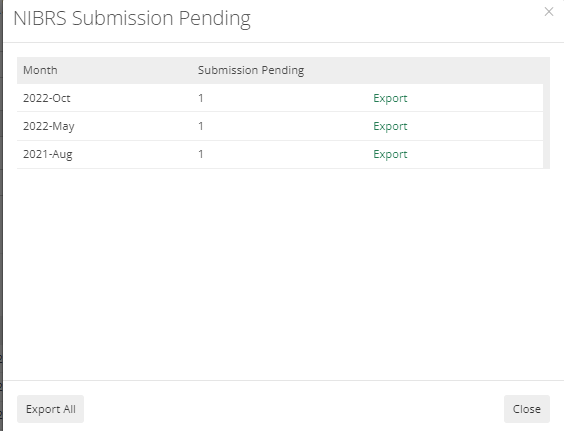
The Pending Submission button on the top right corner, allows you to submit all pending submissions for Data Extraction.
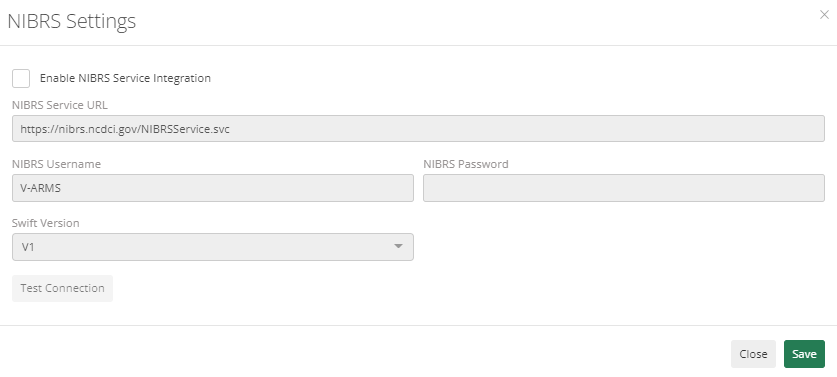
NIBRS Settings allows users to Enable/Disable NIBRS Service Integration.
Resubmission
If a state shows an error for some case and an officer requires to resubmit the case for NIBRS, then it can be done by the same process. Only after clicking the Extract button select Action type as Replace instead of Insert.